Purpose
To update an existing client’s name in the StaffingGo application
Step-by-Step Process
Step 1: Login to Application
Log in to the StaffingGo application using Admin credentials.
Step 2: Navigate to Client Master
Go to Clients tab
Step 3: Search and Select Client
Use the Client Name filter to locate the client
Click on the clinet name loaded in the list
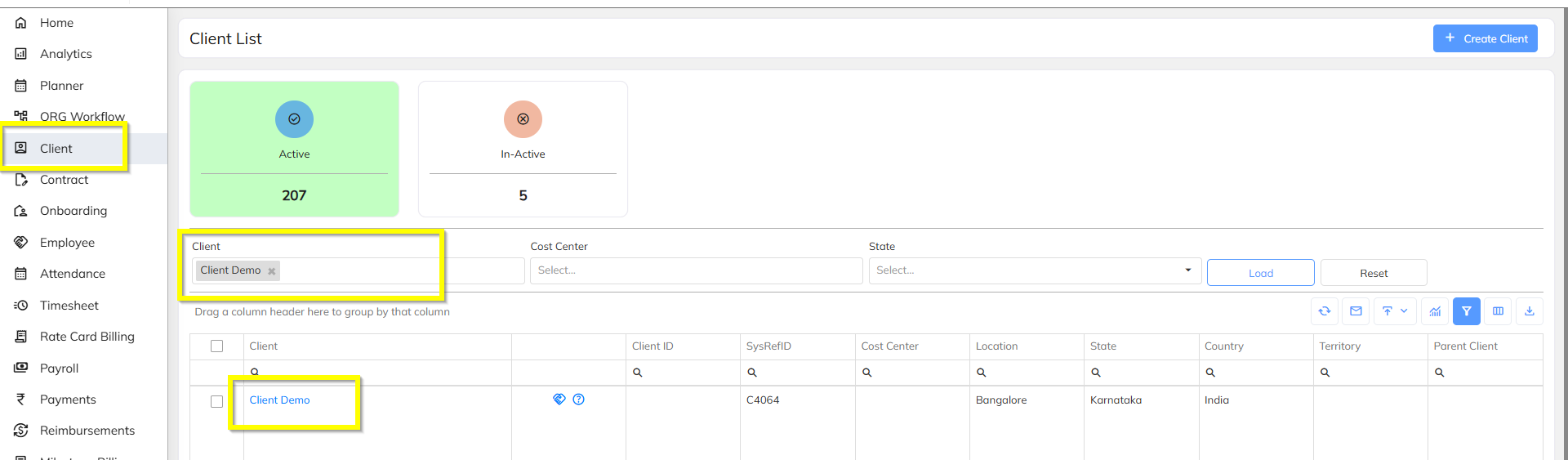
Step 4: Edit Client Details
Click on the Edit option
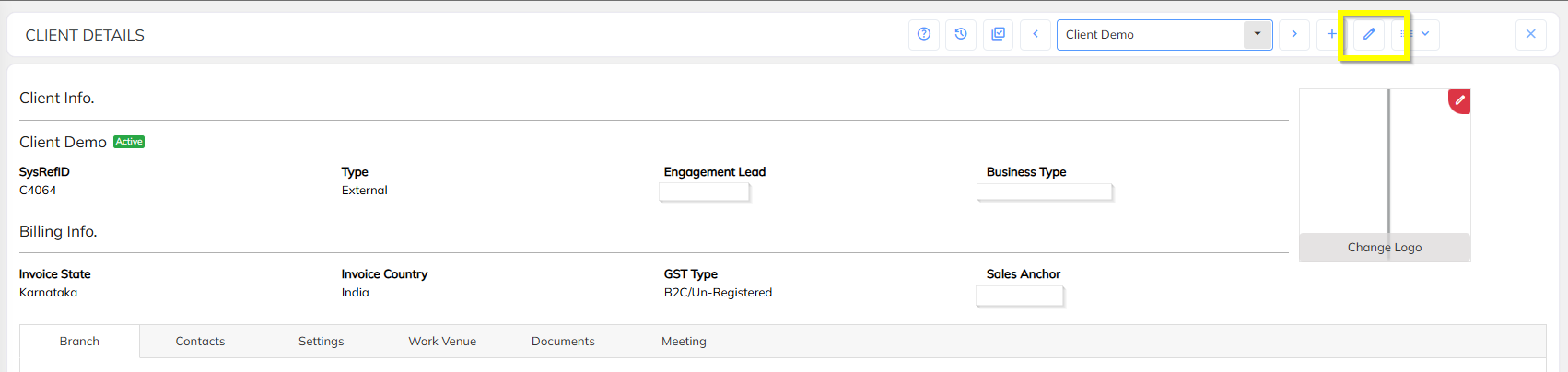
Update the following fields as applicable:
Client Name (New / Revised Name)
Optional (if applicable):
Legal Name
Display Name
Short Name
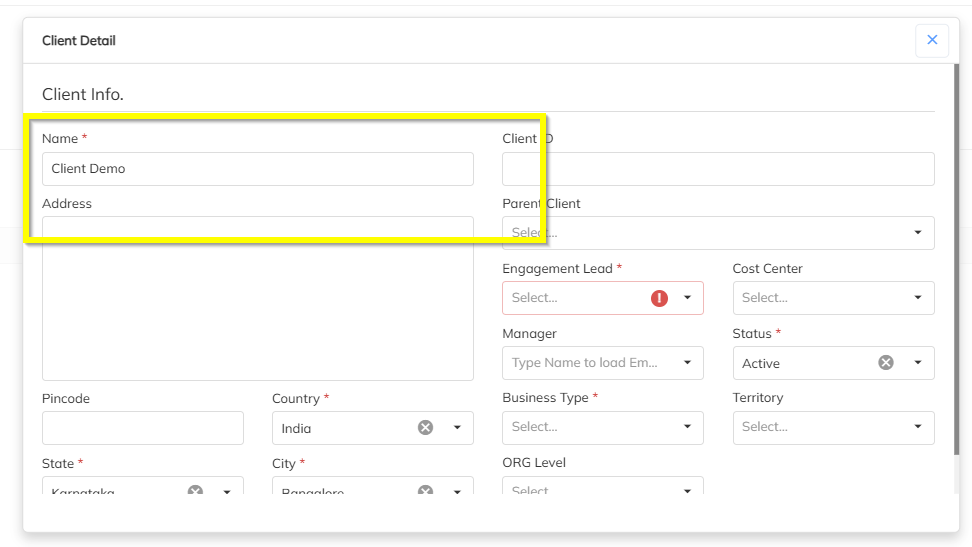
Note: Do not change Client Code unless explicitly required, as it may impact integrations and reports.
Step 5: Save Changes
Click Save / Update
System will validate and confirm successful update
Was this article helpful?
That’s Great!
Thank you for your feedback
Sorry! We couldn't be helpful
Thank you for your feedback
Feedback sent
We appreciate your effort and will try to fix the article