Prerequisites
User must have access to Invoice Creation and Invoice Alter.
Relevant Tally ledgers must already exist in Tally.
Tally integration must be enabled and active.
Process Overview
The process consists of the following steps:
Mapping the Tally ledger while adding an additional line item
Posting the invoice and generating the accounting entry in Tally
Step 1: Map Tally Ledger While Adding an Additional Line Item
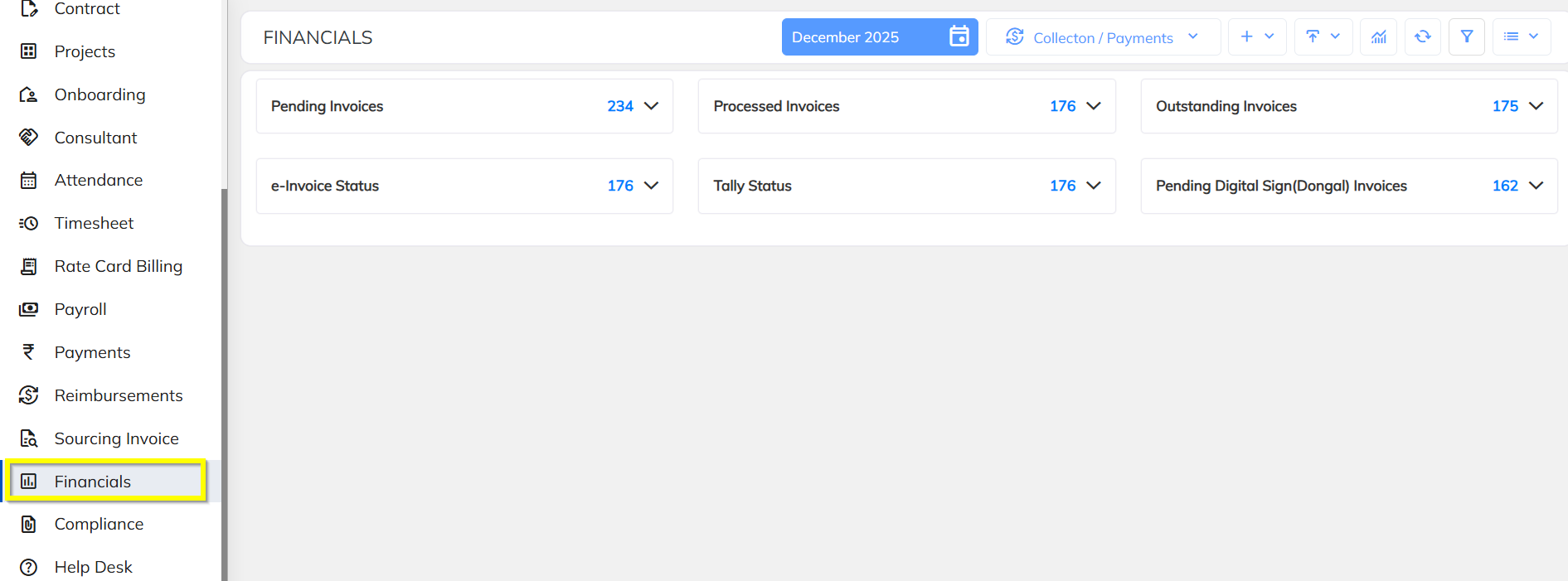
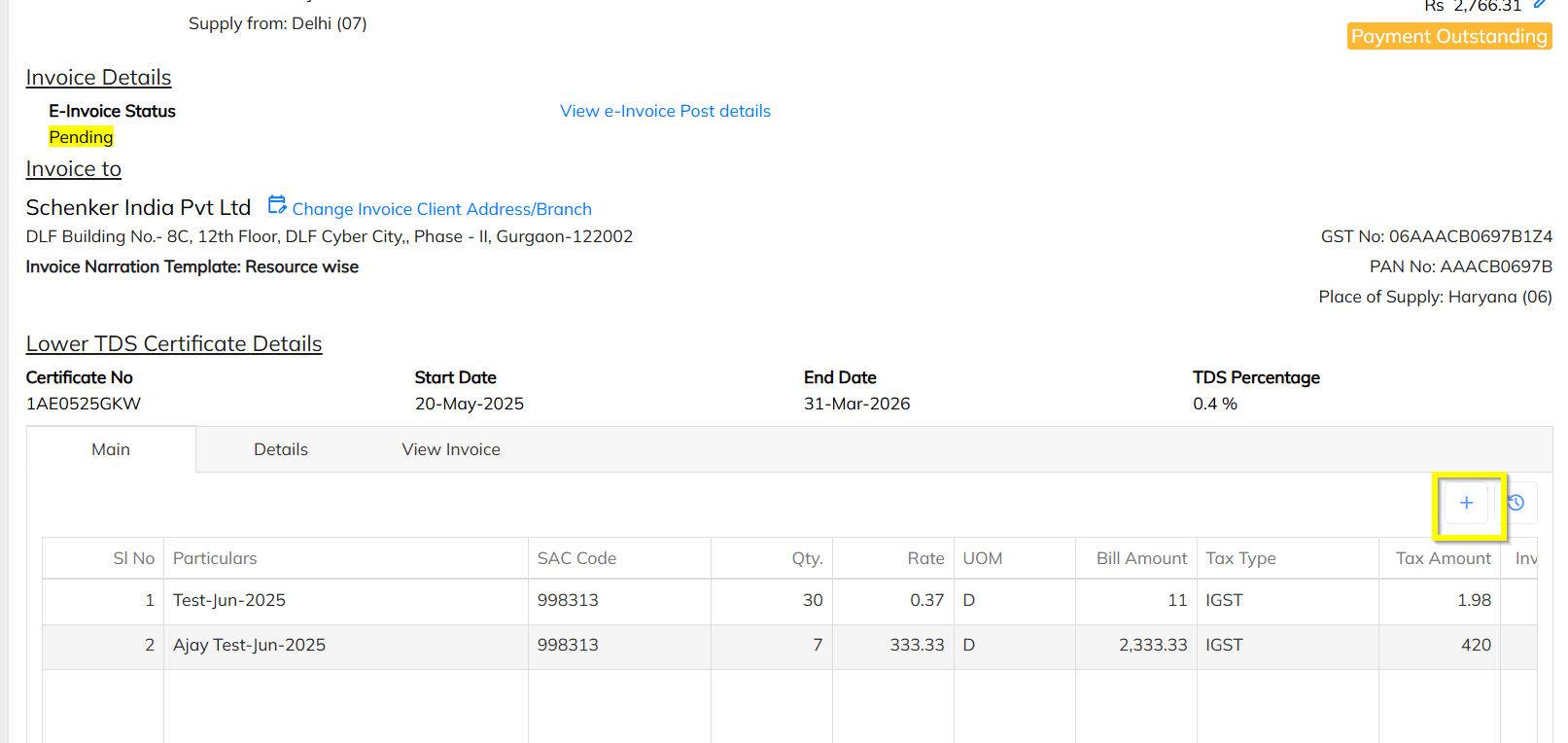
Navigate to Invoice Creation → Invoice Particulars screen.
Click on Add Additional Line Item.
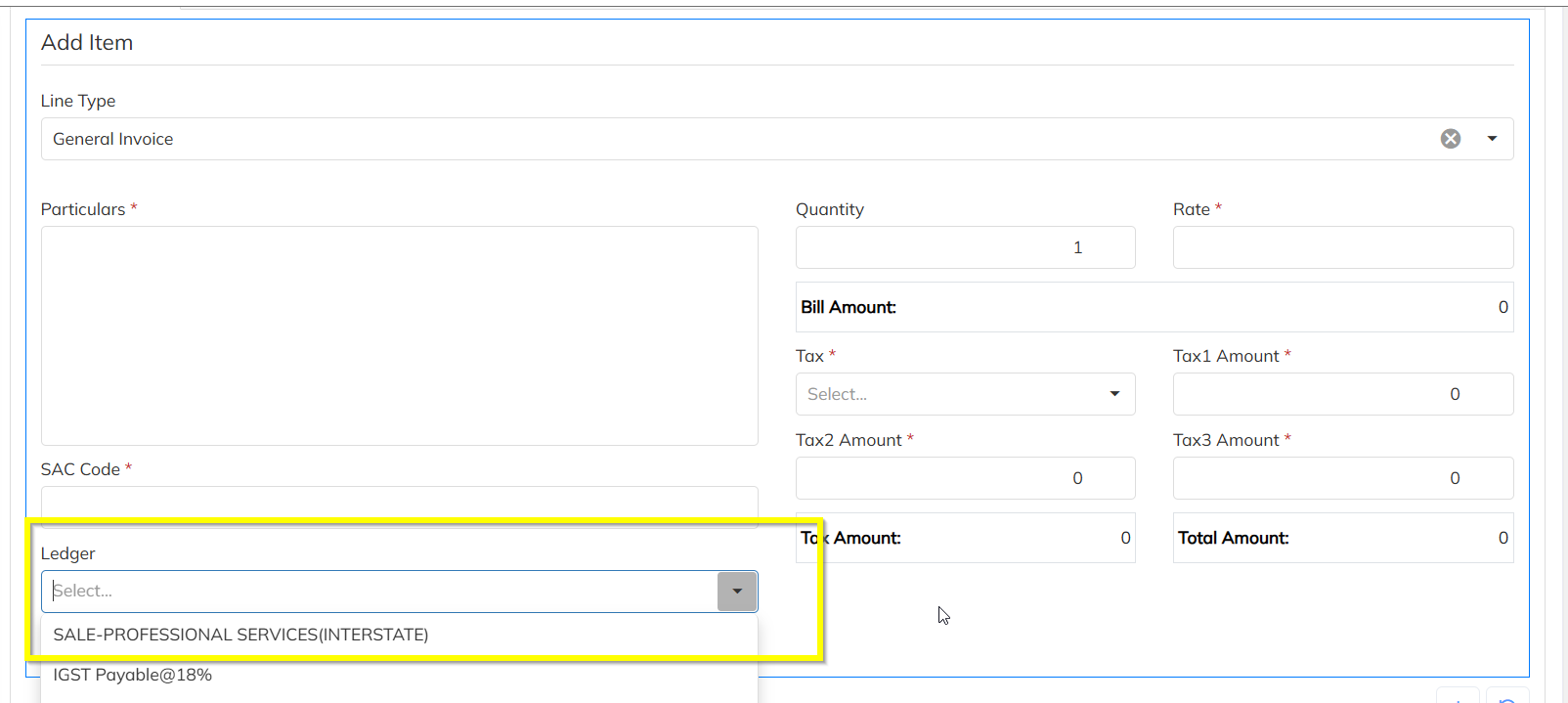
Enter the required details such as:
Line Item Description
Amount
Tax details (if applicable)
Locate the Tally Ledger selection field.
Select the appropriate Tally ledger from the dropdown list.
Verify the mapping and click Save.
Outcome
The additional line item is successfully saved along with the selected Tally ledger mapping.
Step 2: Post Invoice to Tally
Review the complete invoice details, including:
Standard invoice line items
Additional line item(s) with mapped Tally ledger
Click on Post Invoice to Tally
The system validates the invoice and initiates posting to Tally.
During posting:
The additional line item is posted as a separate entry in Tally.
The posting uses the mapped Tally ledger selected in Step 1.
The system generates the actual voucher/particular entry in Tally.
Outcome
The invoice is successfully posted to Tally, and the additional line item is reflected as a separate ledger entry with the correct amount and ledger mapping.
Was this article helpful?
That’s Great!
Thank you for your feedback
Sorry! We couldn't be helpful
Thank you for your feedback
Feedback sent
We appreciate your effort and will try to fix the article