Set-up Tally configuration in Staffinggo Application:
Before setting up the configuration we need to take the access on Tally. Kindly follow the steps below.
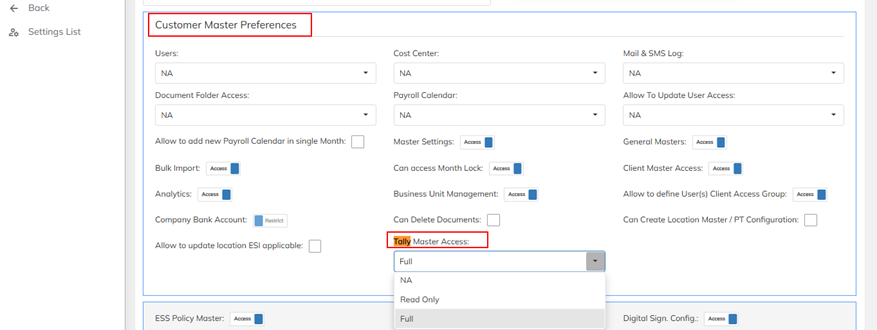
Navigate to settings >> Company setup >> User role template (For which user you need to provide the access, select that user ) >> Search for Tally (You will get the screen like below)
In Tally master Access we have 3 sections to provide the access based on client requirement.
1.NA- User can’t able to view the tally Section
2.Read only – User can able to view but can’t able to make any update
3.Full- User can able to view and able to make any update in Tally section.
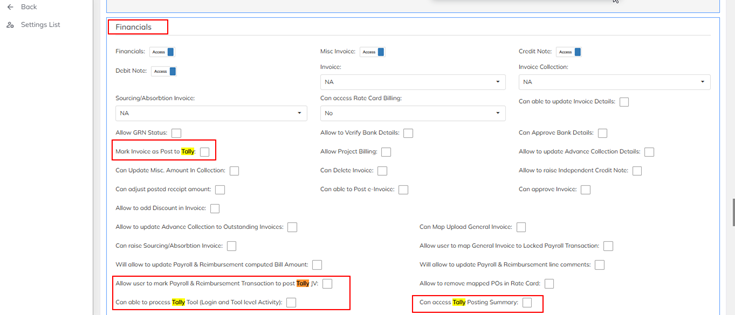
If user required to post the Transactions ,Below are the Highlighted options need to enable.
Once you have the access on Tally section , Navigate to General Masters >> Masters >> Search for Invoice and tally ( Attaching the snap below.)
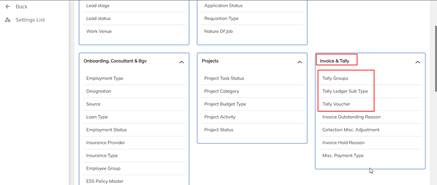
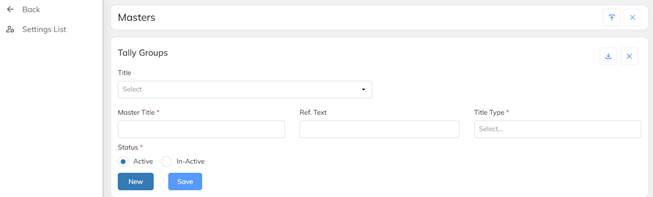
- Click on Tally Groups >> Fill all the mandatory * fields.
- NOTE: Whatever the title you are providing , Title type also needs to be similar.
- EX: GST as “Master Tile” & GST as “Title type”
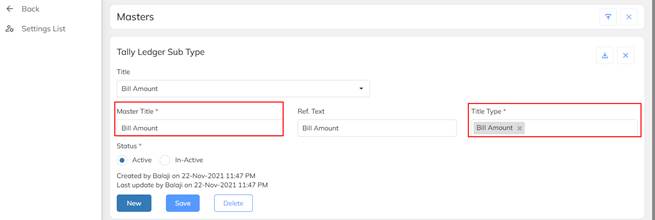
- Click on Tally Ledger sub type >> Fill all the mandatory * fields.
- NOTE: Whatever the title you are providing , Title type also needs to be similar.
- EX: Tax Amount as “Master Tile” & Tax Amount as “Title type”
- Ref.text: Whatever the title you are providing, same thing you can mention in Ref.text column.
Once configured, You can map the ledger sub types, Vouchers in following Sections
- Contract
- Branch
- Client
- Cost-Center
- Company
CONTRACT:
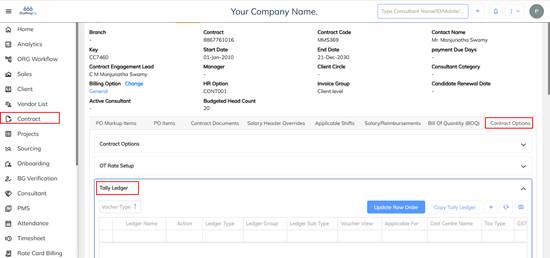
Navigate to contract >> Select Contract Options >> Choose Tally Ledger.(Attachinh the snap )
CLIENT :
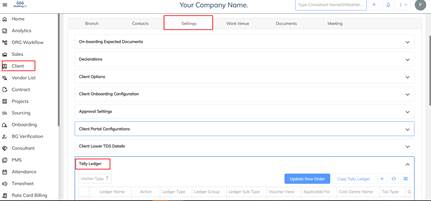
Navigate to client >> Settings >> Tally ledger (Attachinh the snap)
BRANCH :
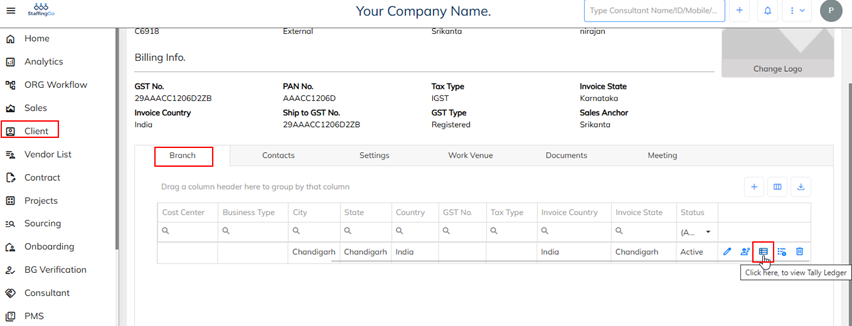
Navigate to client >> Branch >> Click on to view Taly Ledger
COST-CENTER :
Navigate to Settings >> Company set up >> Cost Center
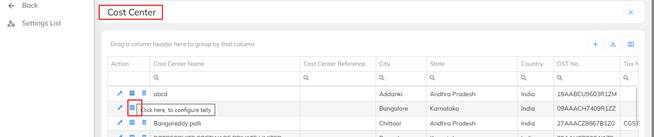
COMPANY DETAILS:
Navigate to settings >> Compnay setup>> Company details >> Configure Tally ledger >> Click on “+” icon. (Attaching the snap FYR)
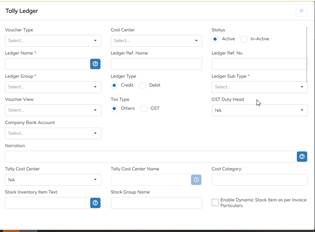
Once you click on “+” icon, You need to fill the data and Save the data. Record will created.
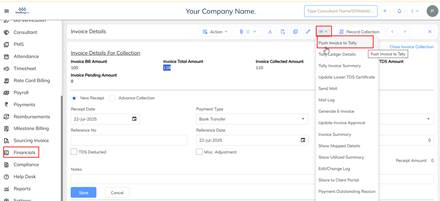
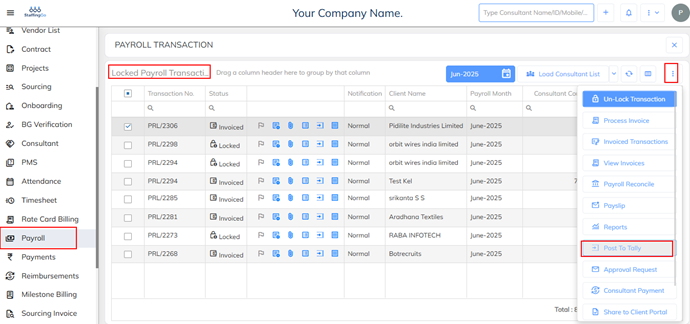
Once Ledger configurations done in application we have 4 ways to post those transactions to tally.
- Payroll
- Invoice collection
Was this article helpful?
That’s Great!
Thank you for your feedback
Sorry! We couldn't be helpful
Thank you for your feedback
Feedback sent
We appreciate your effort and will try to fix the article