Help Desk Configuration refers to the setup process of the support or ticketing system within the staffinggo application. It includes defining ticket categories, assigning responsible teams or agents, setting priority levels, configuring TAT (Turnaround Time), and enabling notifications. This setup ensures that employee queries or issues are tracked, assigned, and resolved efficiently through a structured workflow.
Below are the steps on how one can Configure Help Desk and how Employee can raise the Help Desk Request in the staffinggo application :
Help Desk Configuration:
- Login as an Administrator
- Click on Settings --> Click on Masters
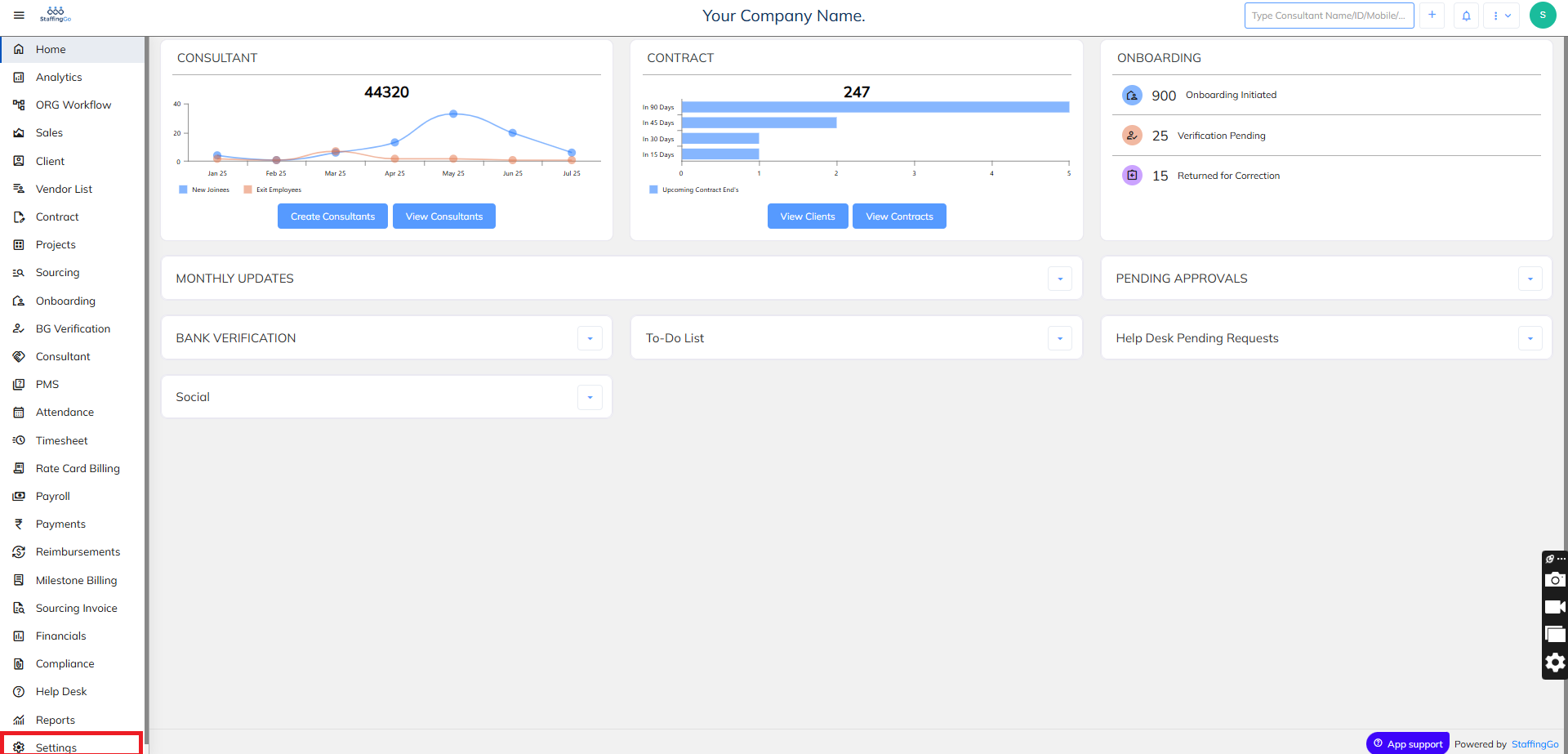
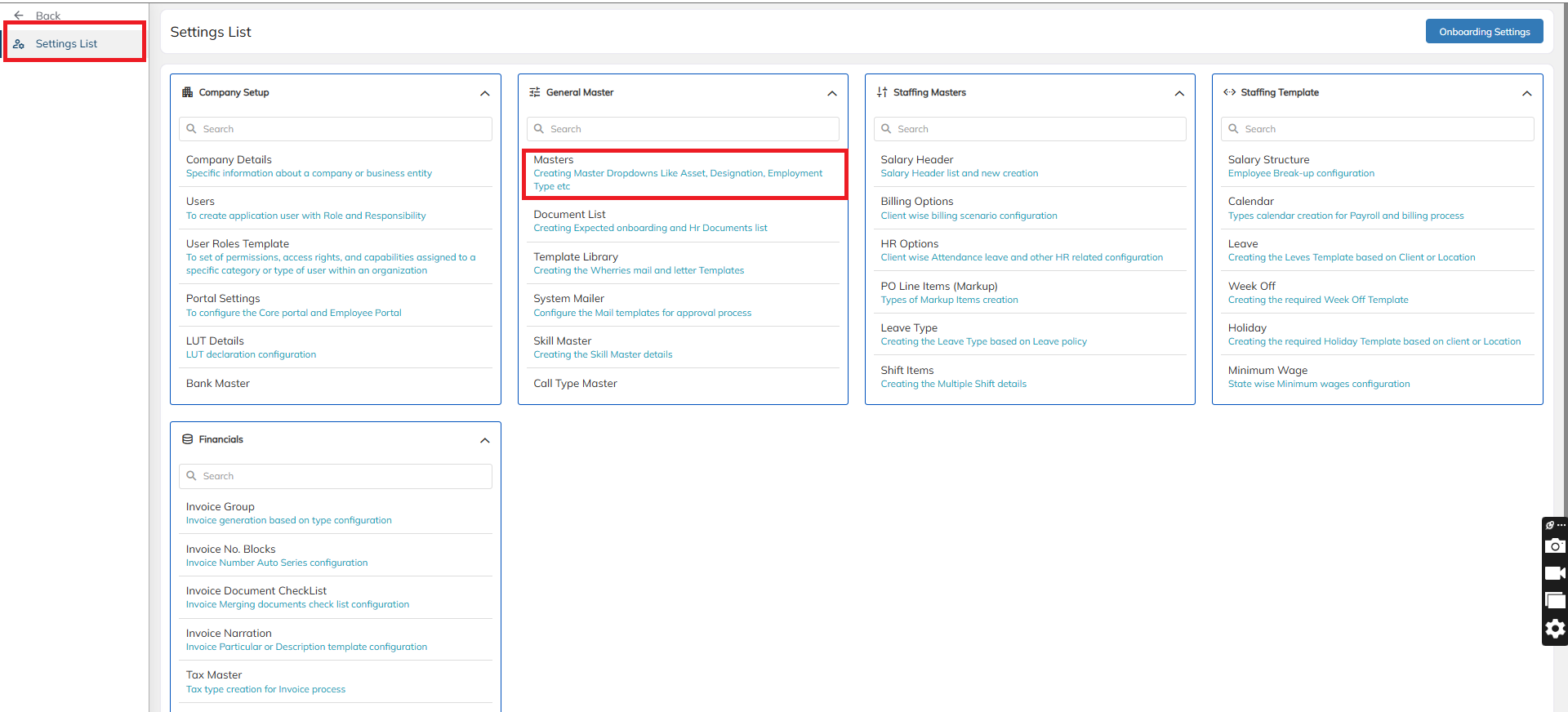
- In Masters --> Click on Help Desk Request Category
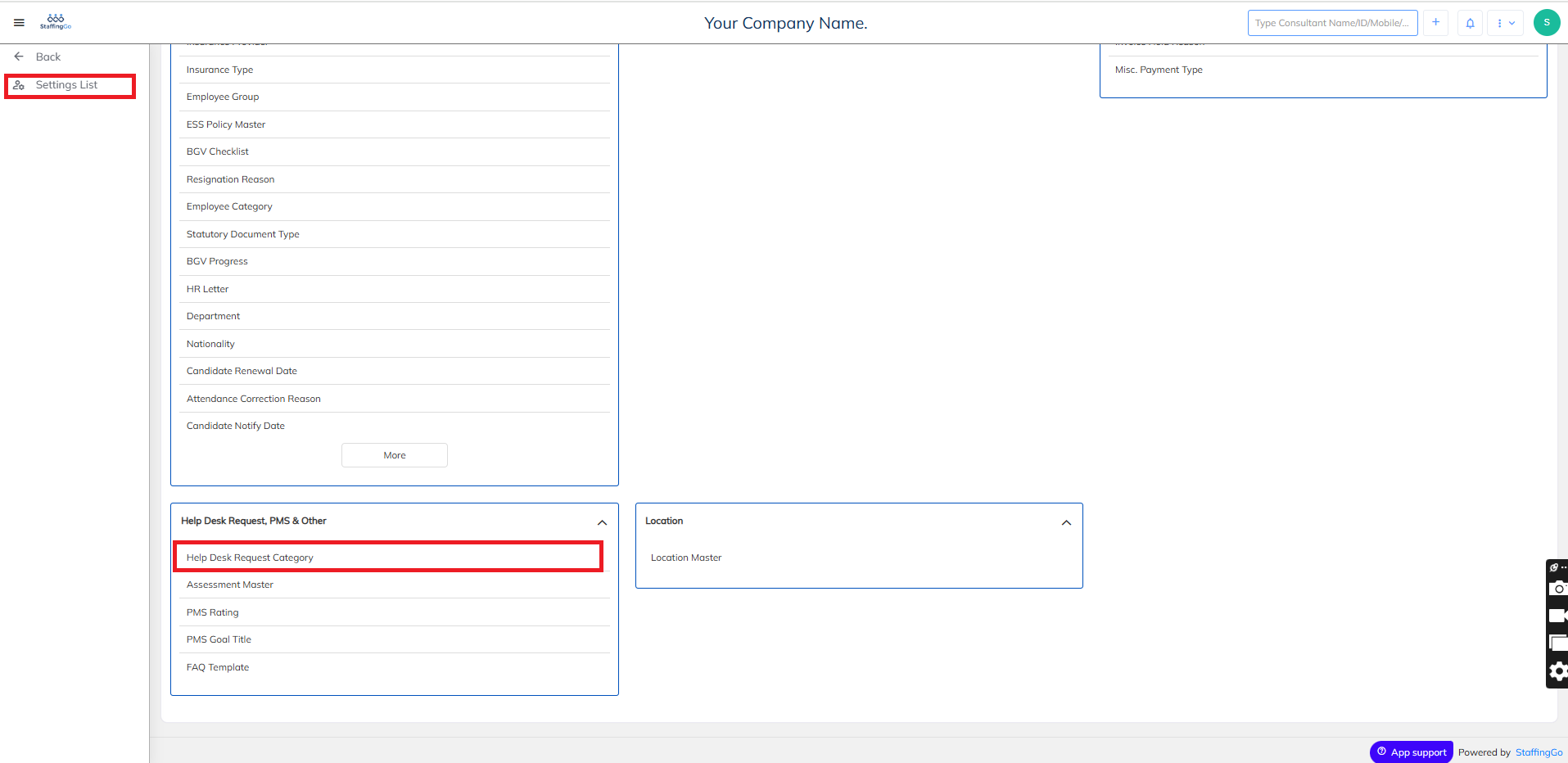
- Under the Masters section --> Click on New to Create New Help Desk Title and fill in the feilds as below
- Master Title: Enter the name of the Help file
- Visibility : You can select whom you would want this Help Desk Title to appear for.
- TAT to Close: Turn around time (Expected time duration) you would want the ticket to be closed
- EscalationTAT: Turn around time in case of Escalation Tickets.
- Escalation User: One can assign the escalation user responsible
- User : One can assign the User responsible
- Once the details have been entered, Click on Save to save the Newly created Help Desk Title
Help Desk Request as an Employee:
- Login as an User/Employee
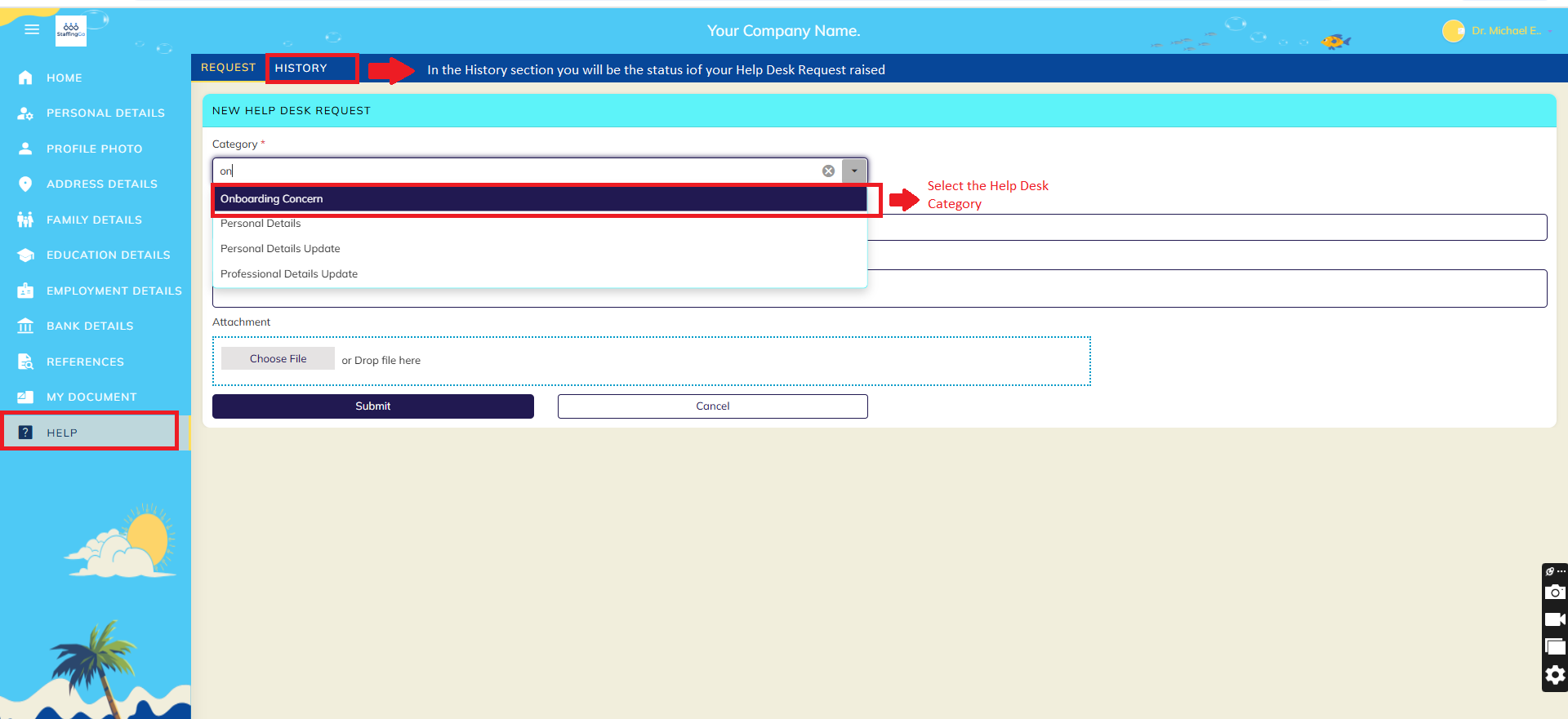
- Click on Help
- Click on Category and Select the type of Help Desk Request
- Enter the Title for your Help Request
- Enter the Details in brief explaining your concern
- Click on choose File to attach details regarding your concern
- Once all the details are updated, Click on Submit
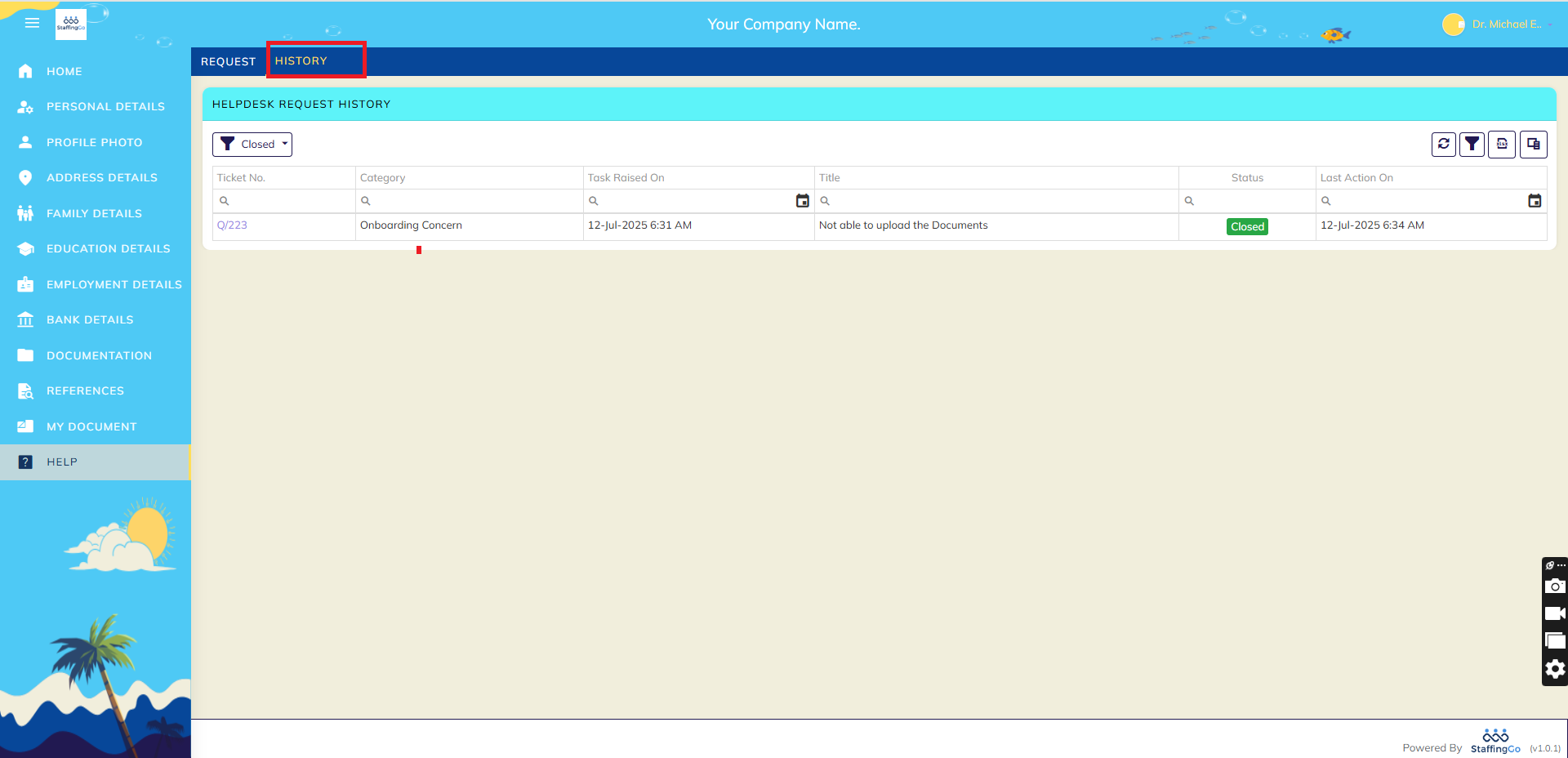
- Once Submitted --> You will be able to view the Status of the Help Desk Ticket in History
Help Desk Dashboard as an Admin:
- Login as an Admin
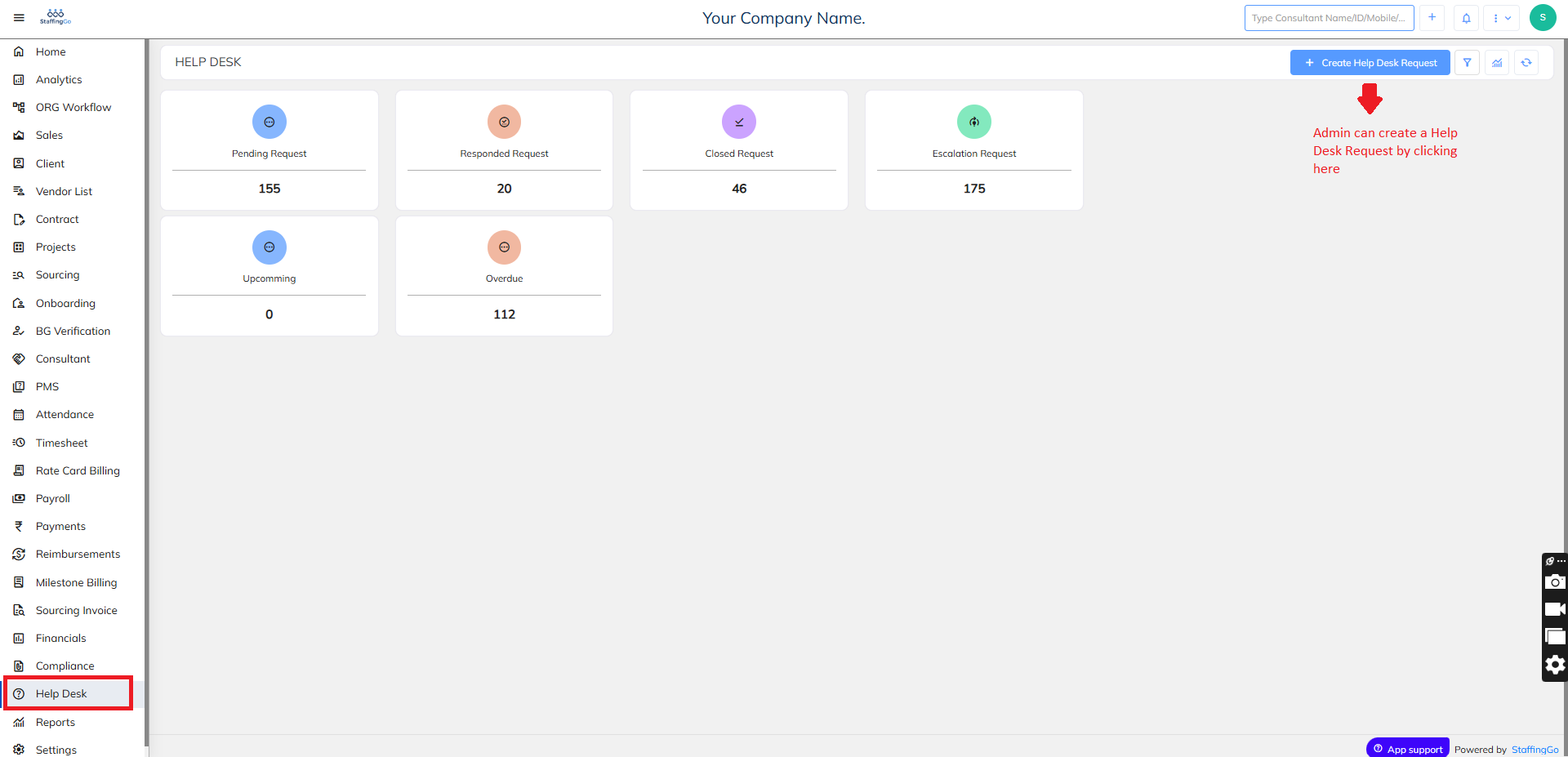
- Click on Help Desk
- Here the Admin can view the Pending Request, Responded Request, Closed Request, Escalation Request, Upcomming, Overdue
- The Admin can also Create Help desk Request by clicking on the button and submitting the details as shown below.
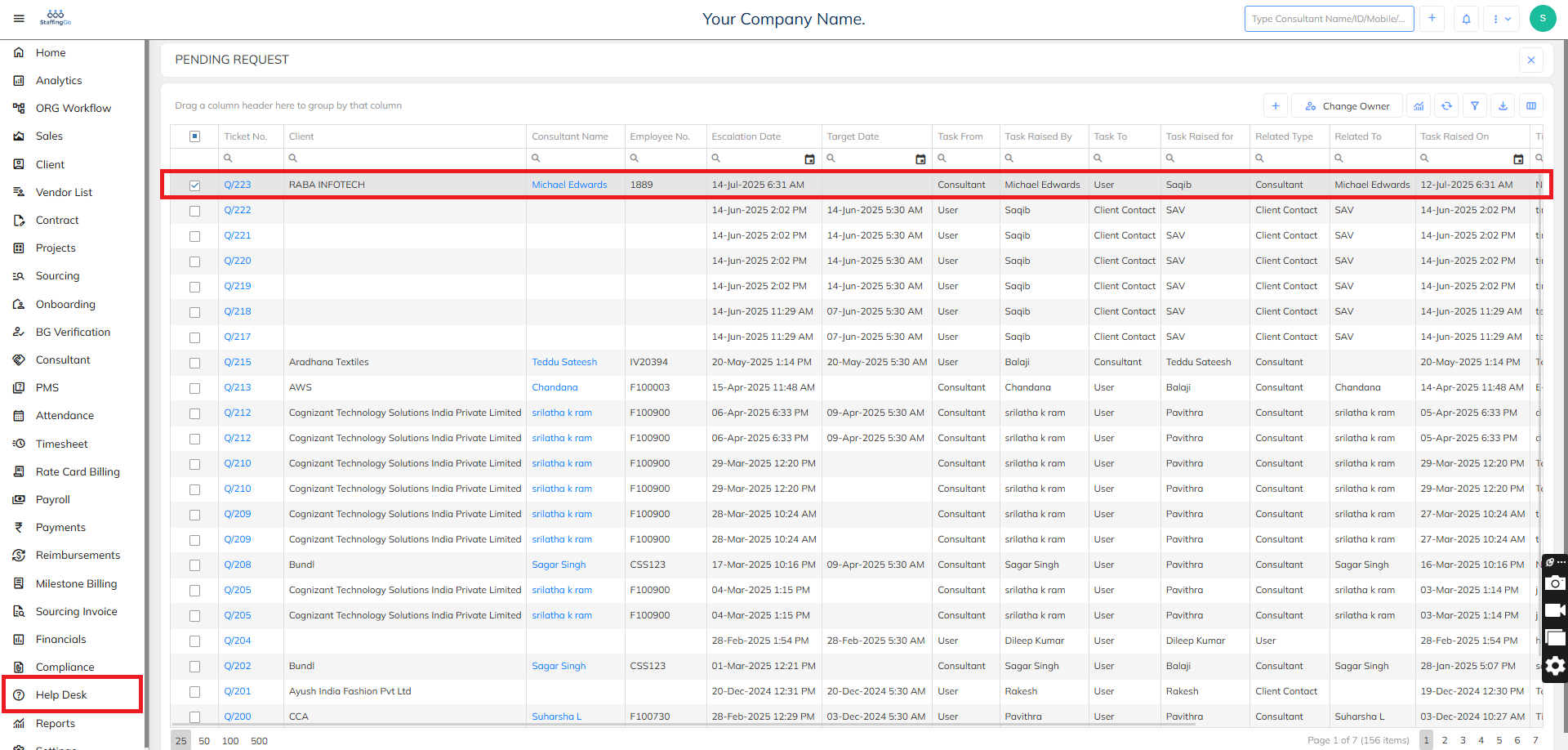
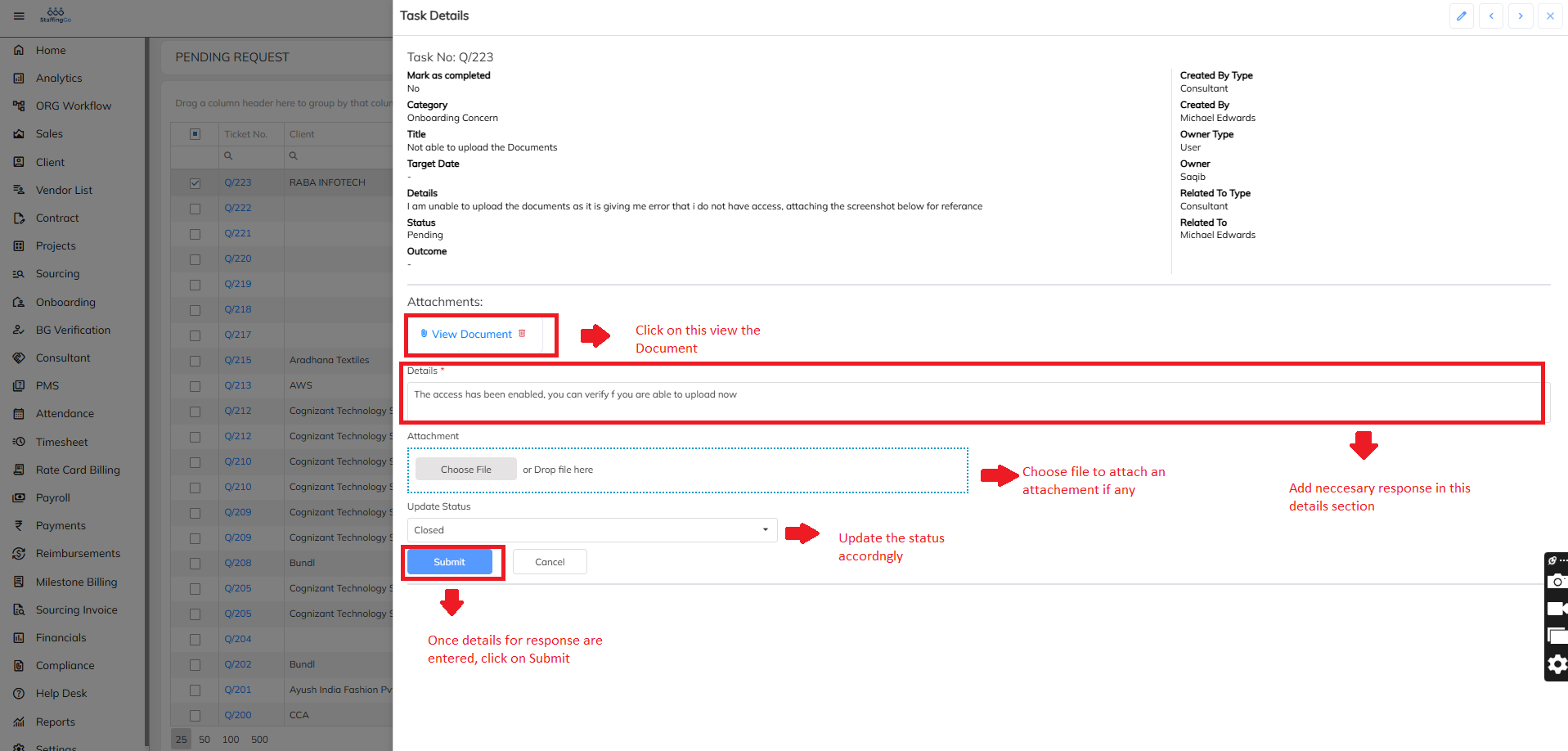
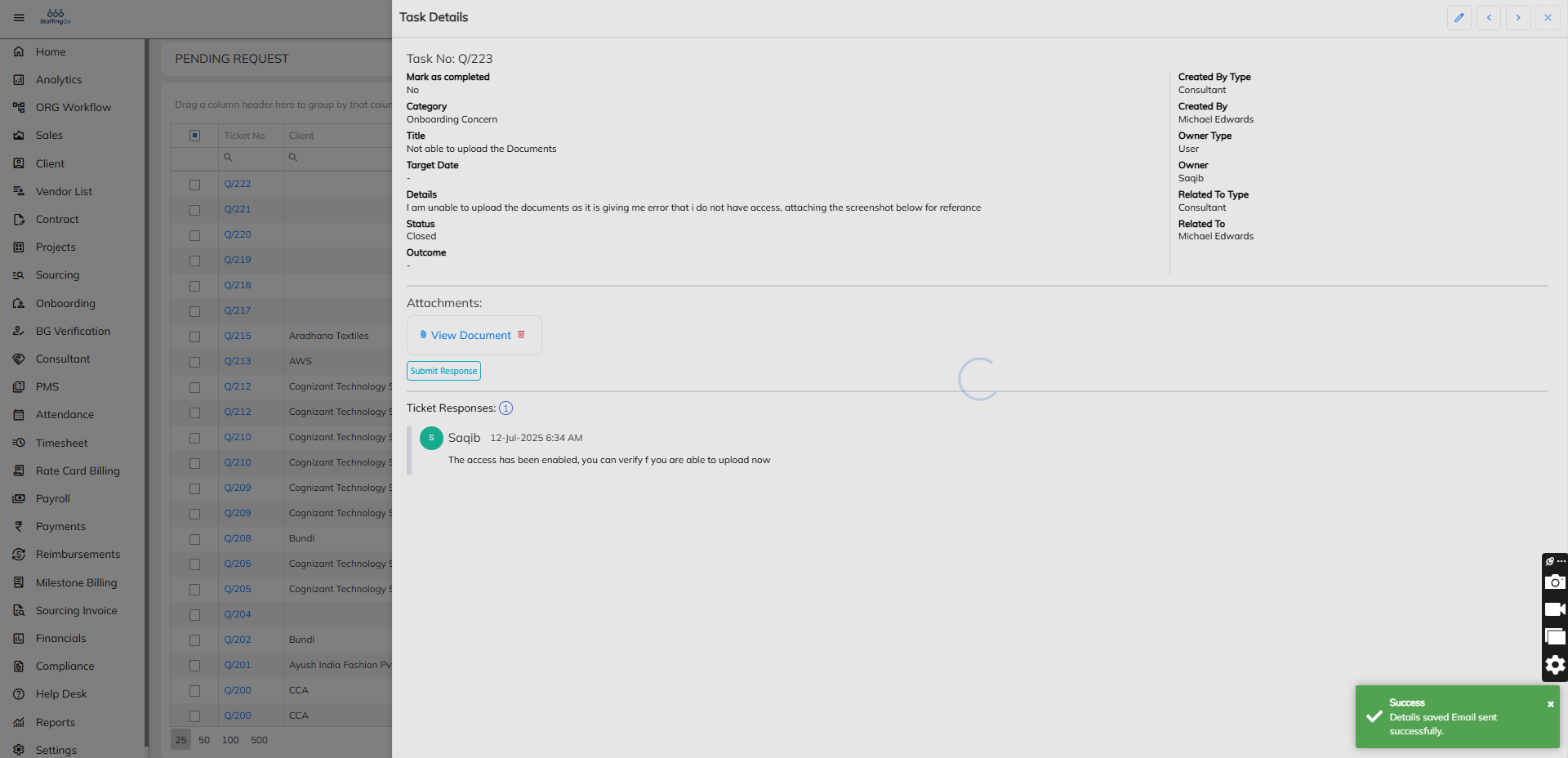
- The Admin can click on Pending Request and Select the Employee and Address the Concern as follows.
Need Help?
If you have any doubts or need further assistance regarding client creation or any other feature, feel free to reach out to our support team at support@staffinggo.in. We’re here to help you!
Was this article helpful?
That’s Great!
Thank you for your feedback
Sorry! We couldn't be helpful
Thank you for your feedback
Feedback sent
We appreciate your effort and will try to fix the article