Overview
The Leave Configuration module is used to define different leave types and their behavior in the system. These configurations determine how leaves are displayed, credited, applied, and processed for employees across HR login, Employee ESS portal, timesheet module, compliance reports, and payroll processes.
Administrators can configure leave properties such as eligibility, leave credit rules, carry forward policies, display formats, and application restrictions.
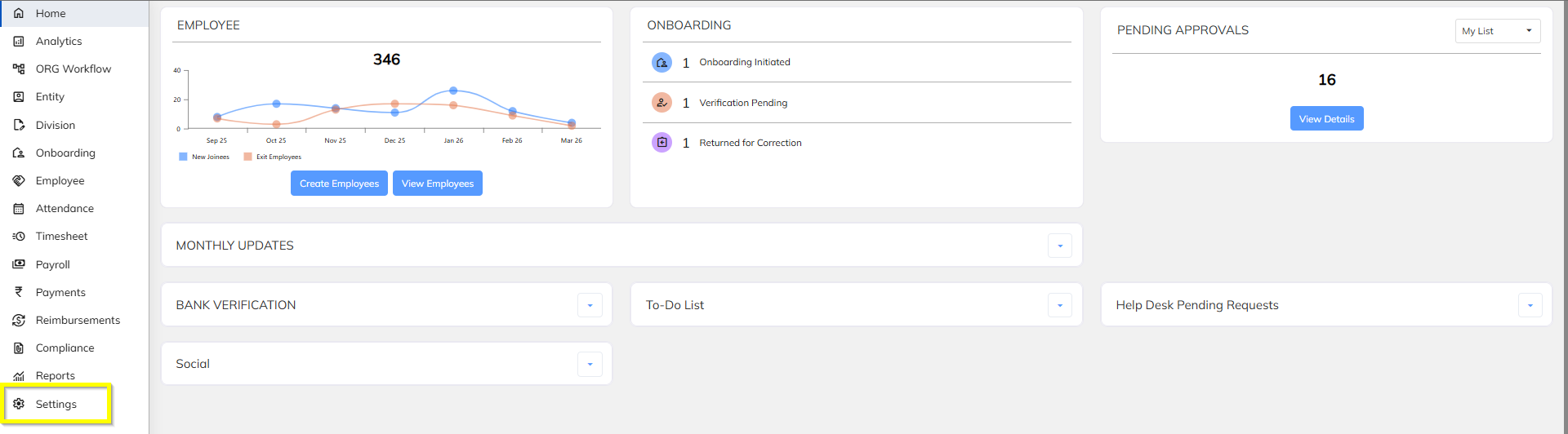
Leave Creation.
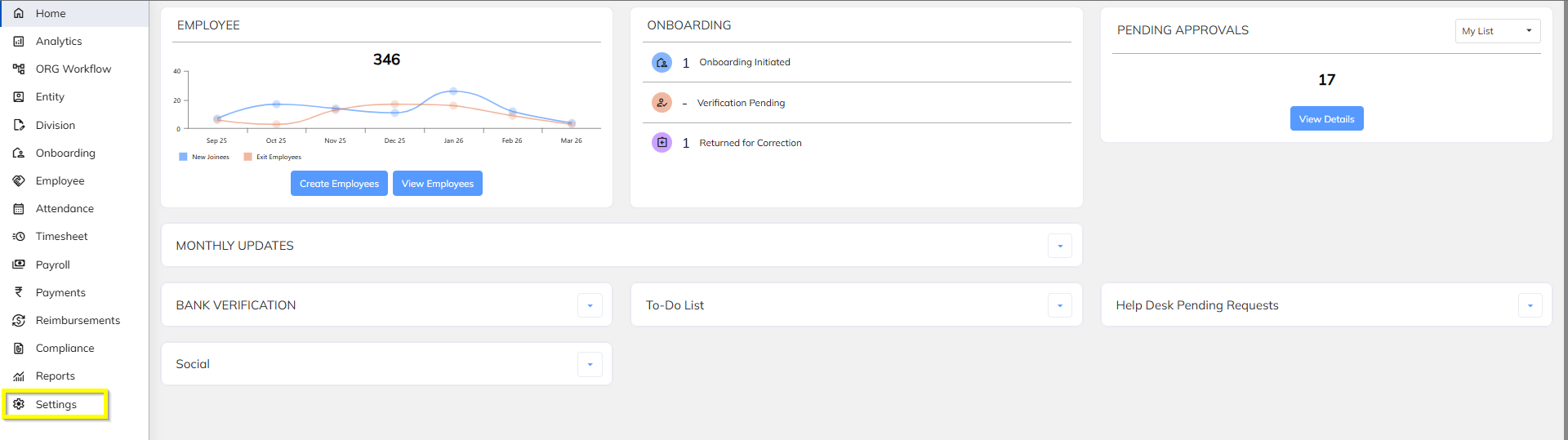
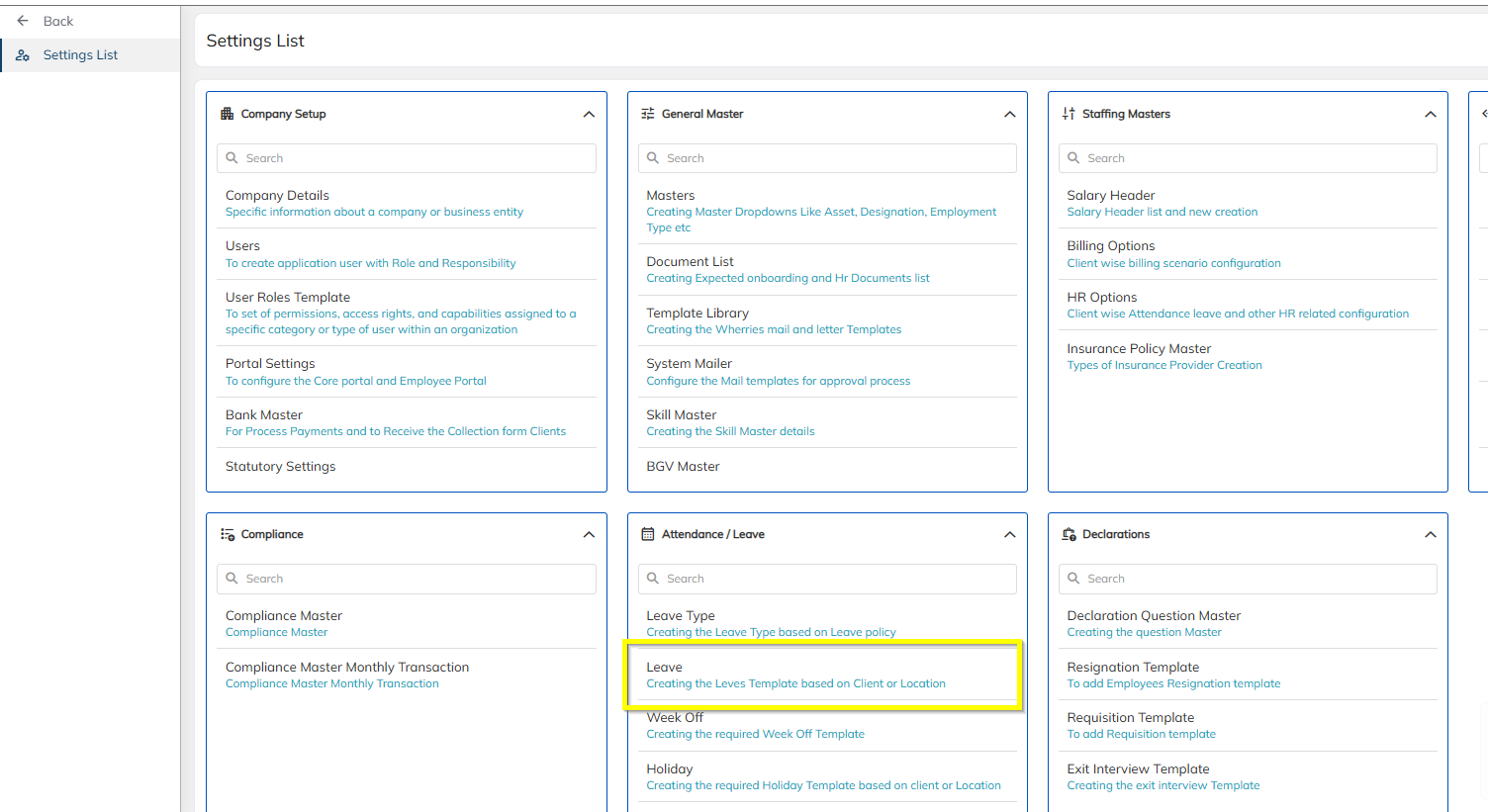
Setting>>>Attendance/Leave>>>Leave Type
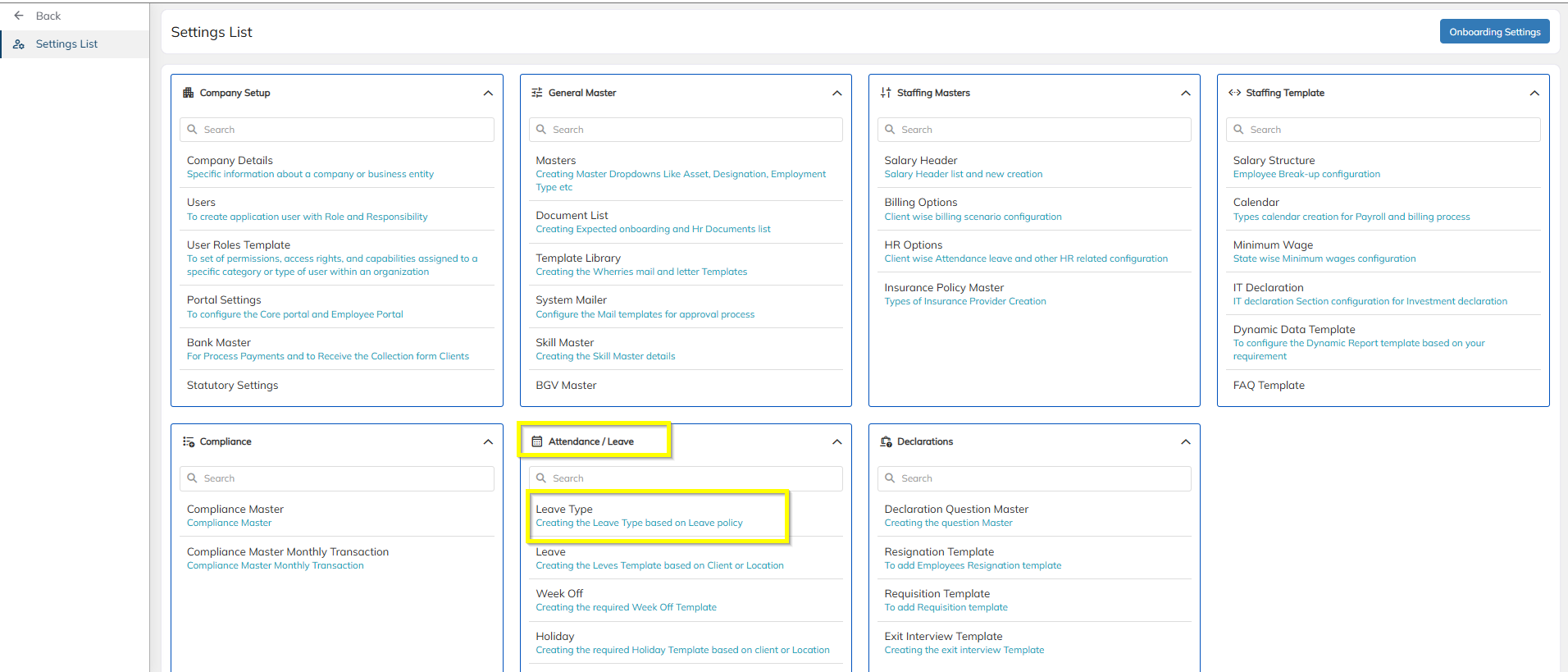
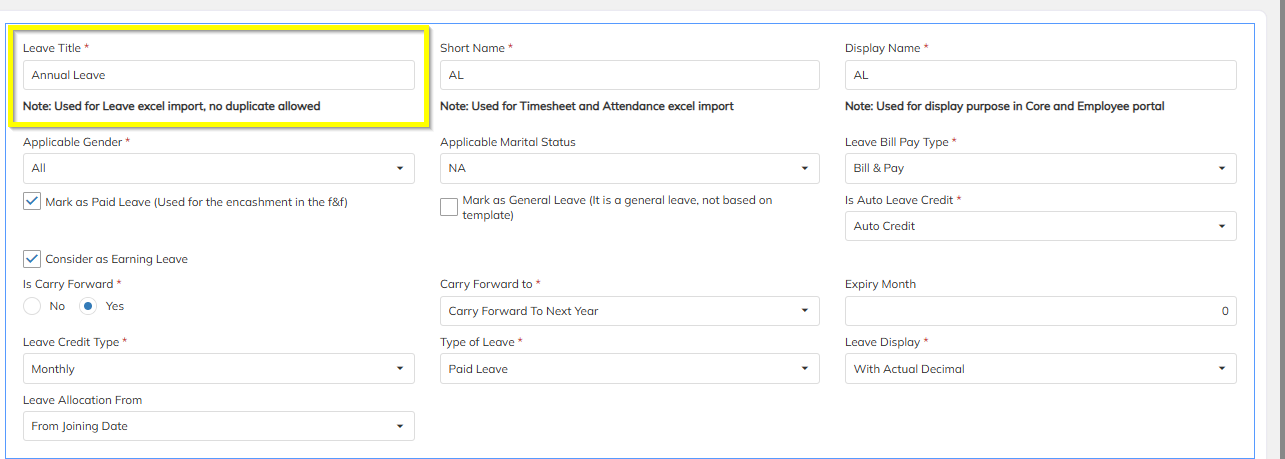
Leave Title
The Leave Title is the main name of the leave type that will appear across the system.
It will be visible in:
Employee Profile (Core HR)
Employee ESS Portal
Leave Excel Import Template
Example:
Privilege Leave
Casual Leave
Sick Leave
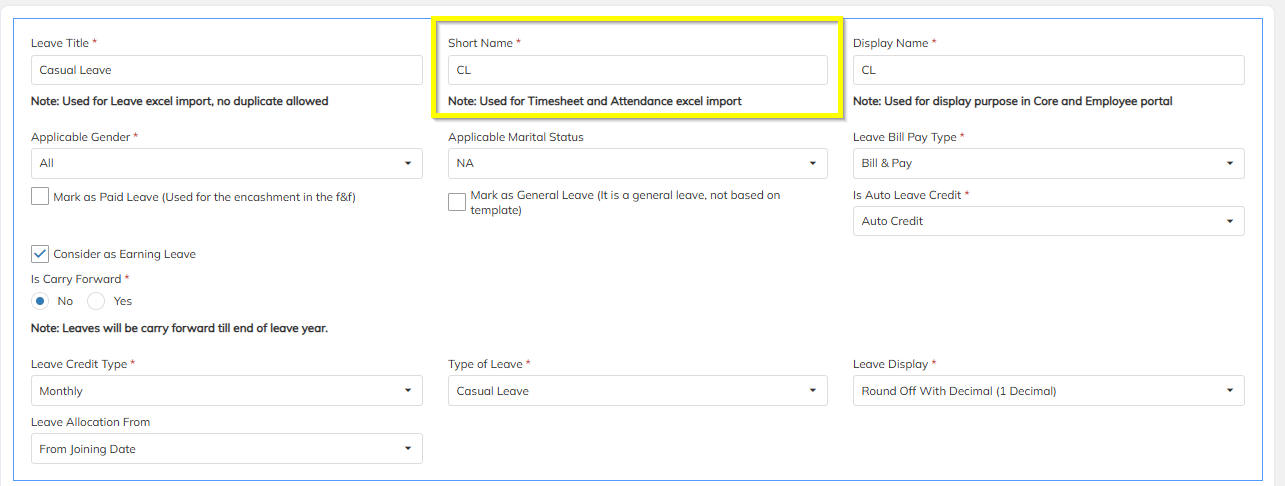
Short Name
Short Name is used for compact display in operational modules.
Usage locations:
Timesheet Leave Entry
Compliance Reports
Attendance Reports
Example:
| Leave Title | Short Name |
|---|---|
| Casual Leave | CL |
| Sick Leave | SL |
| Privilege Leave | PL |
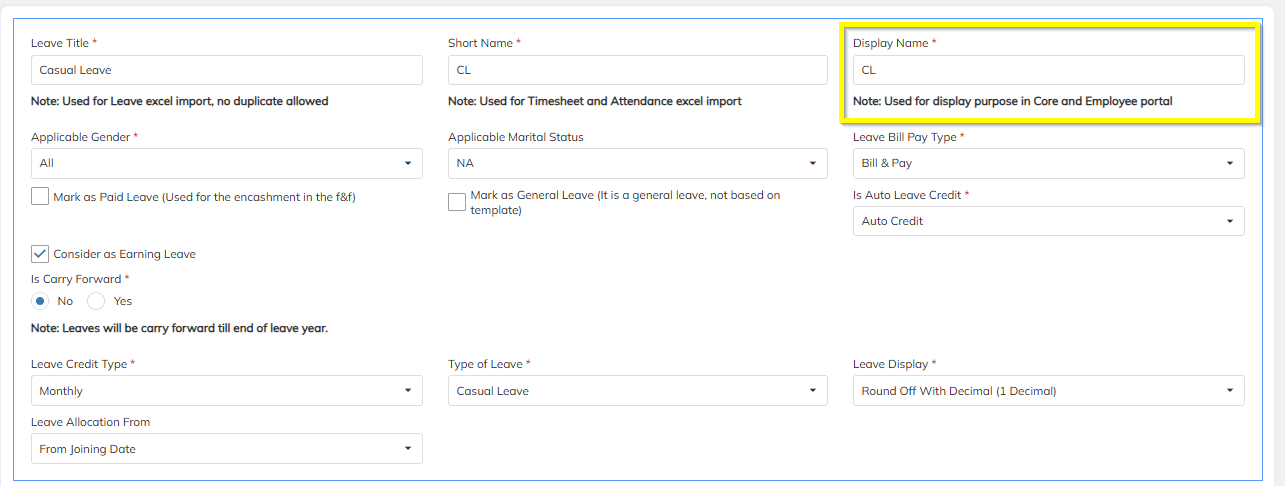
Display Name
Display Name is the label shown during attendance or day-level leave marking.
This appears in:
Timesheet Module – Day Level Attendance Update
Leave details in Employee Profile
Example:
| Leave Title | Display Name |
|---|---|
| Casual Leave | CL |
| Sick Leave | SL |
| Privilege Leave | PL |
3. Applicable Gender
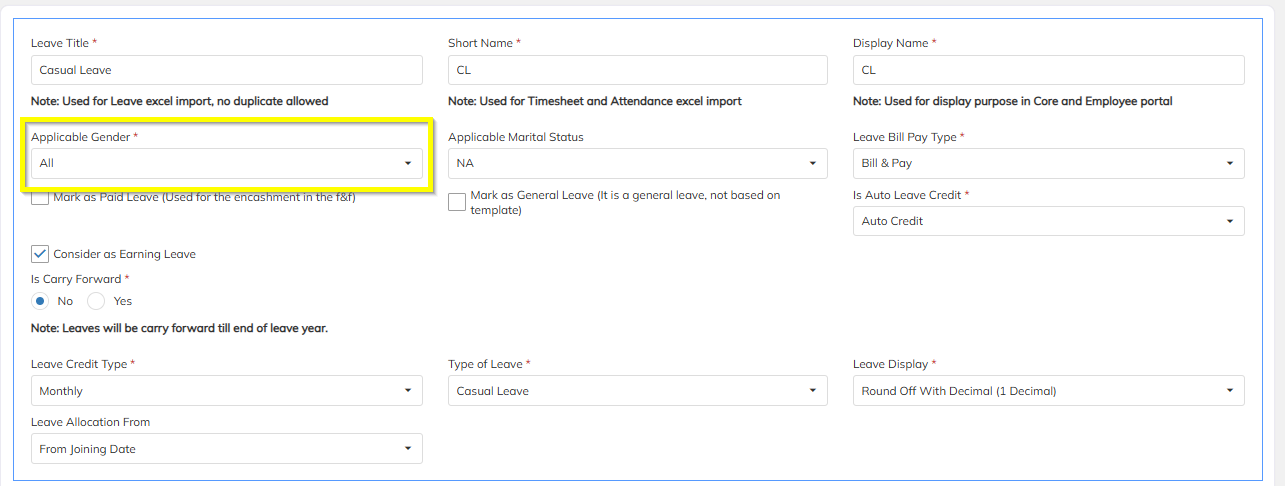
This option defines gender eligibility for a leave type.
| Option | Description | Example |
|---|---|---|
| Select All | Applicable for all employees | Casual Leave |
| Female | Only female employees can apply | Maternity Leave |
| Male | Only male employees can apply | Paternity Leave |
4. Applicable Marital Status
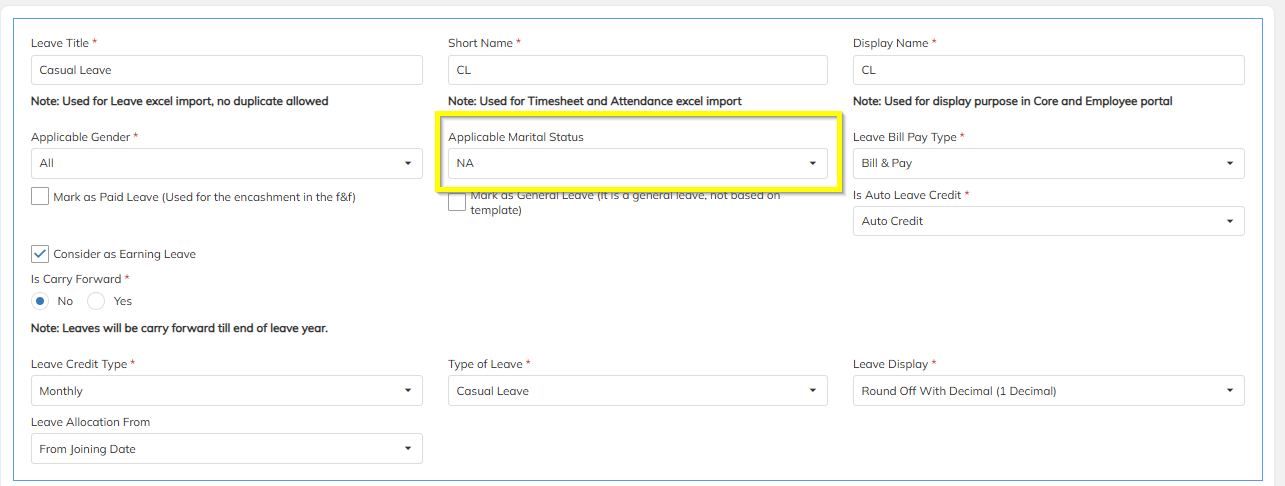
This configuration controls leave eligibility based on marital status.
| Option | Description |
|---|---|
| NA | Applicable to all employees |
| Single | Only employees with marital status Single |
| Married | Only employees with marital status Married |
Example usage:
Maternity Leave → Married
Paternity Leave → Married
Leave Bill Pay Type
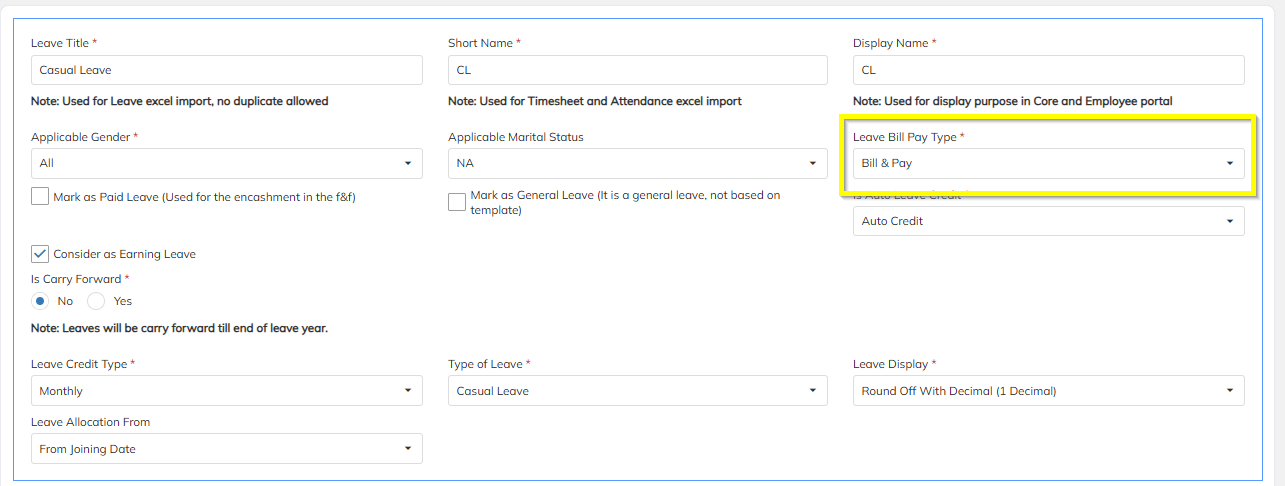
Defines whether the leave will impact employee payout and/or client billing.
| Option | Description |
|---|---|
| Bill & Pay | Leave counted for both employee payout and client billing |
| Bill Only | Only billing to client considered |
| Pay Only | Only employee salary payout considered |
| No Bill & No Pay | Leave not considered for payroll or billing |
Mark as General Leave
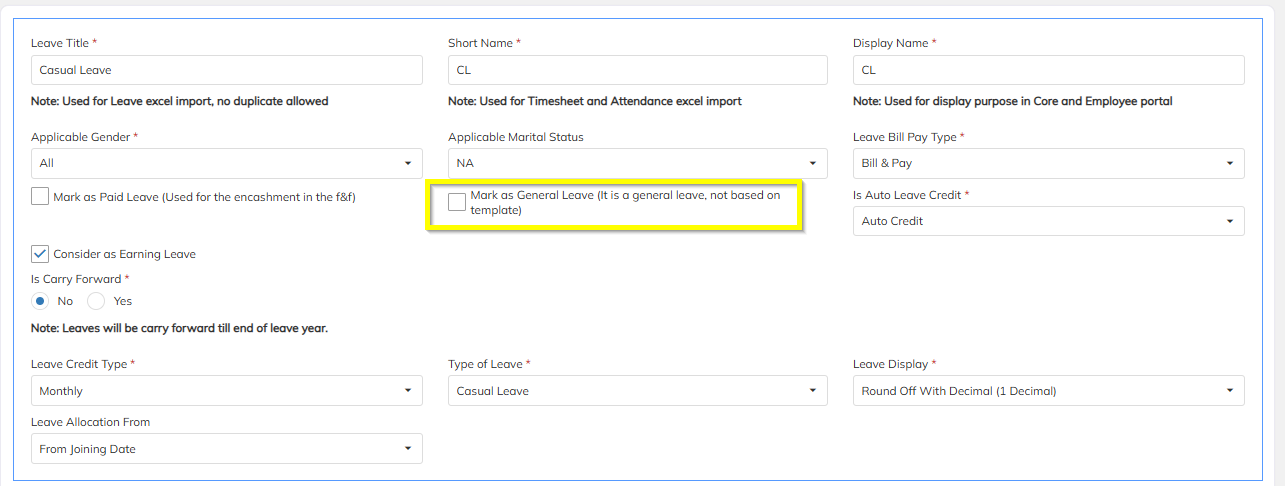
When enabled:
Leave directly appears in Employee ESS portal
No leave template mapping required
No need to define number of leave days
Example:
Optional Leave
Special Leave
Mark as Paid Leave
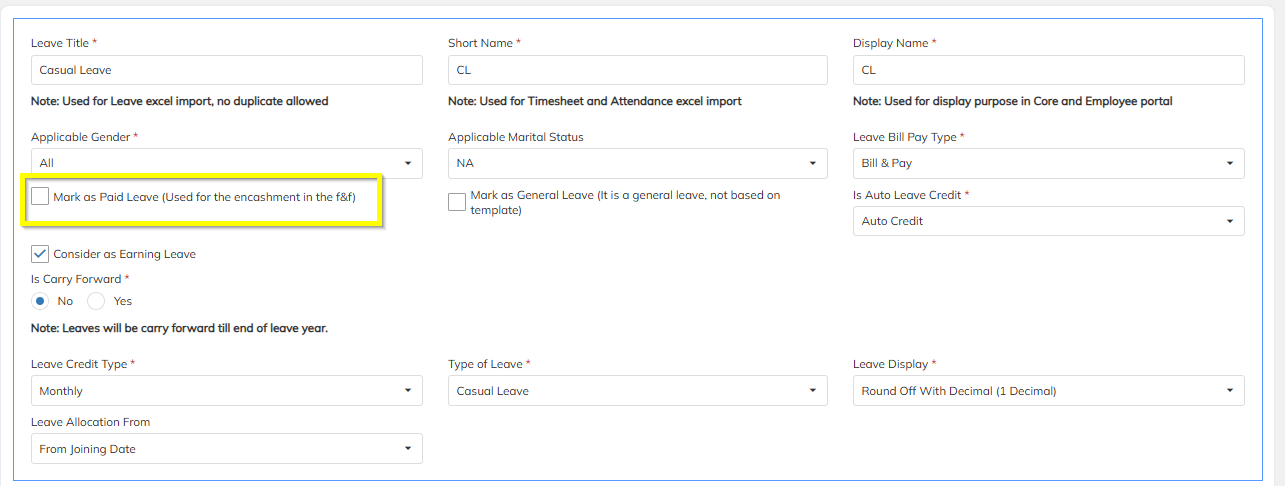
If enabled:
Unused leaves automatically sync to Leave Encashment
Used during Full & Final (F&F) settlement
Example:
Privilege Leave (PL)
Is Auto Leave Credit
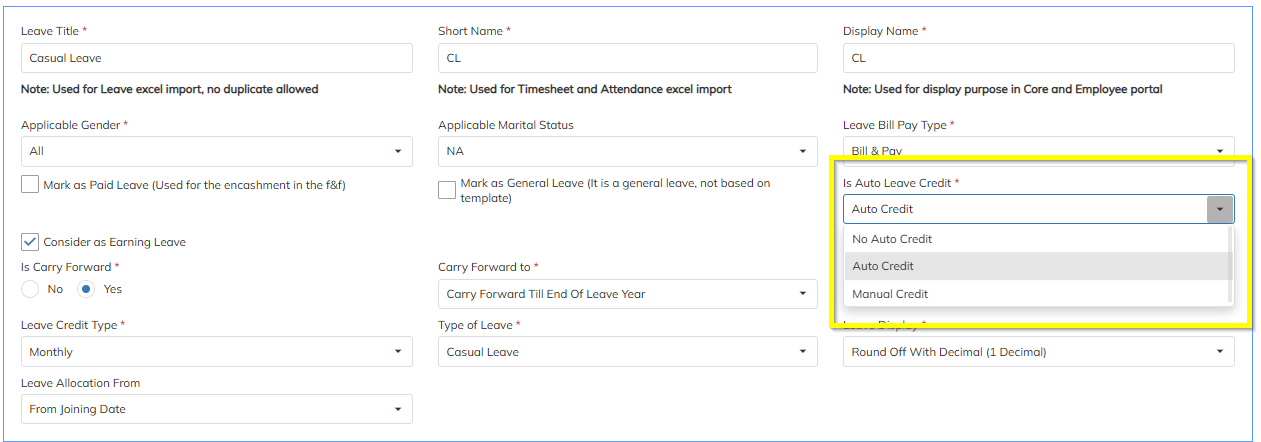
This setting defines leave Auto Credit or Manul Credit rules.
Credit Option
| Option | Description |
|---|---|
| No Auto Credit | Sytem will not credit Leave Auto |
| Auto Credit | System will Credit Leave Auto based on the ploicy |
| Manul Credit | User has Credit the Leave manuly |
Conisder has earning Leave
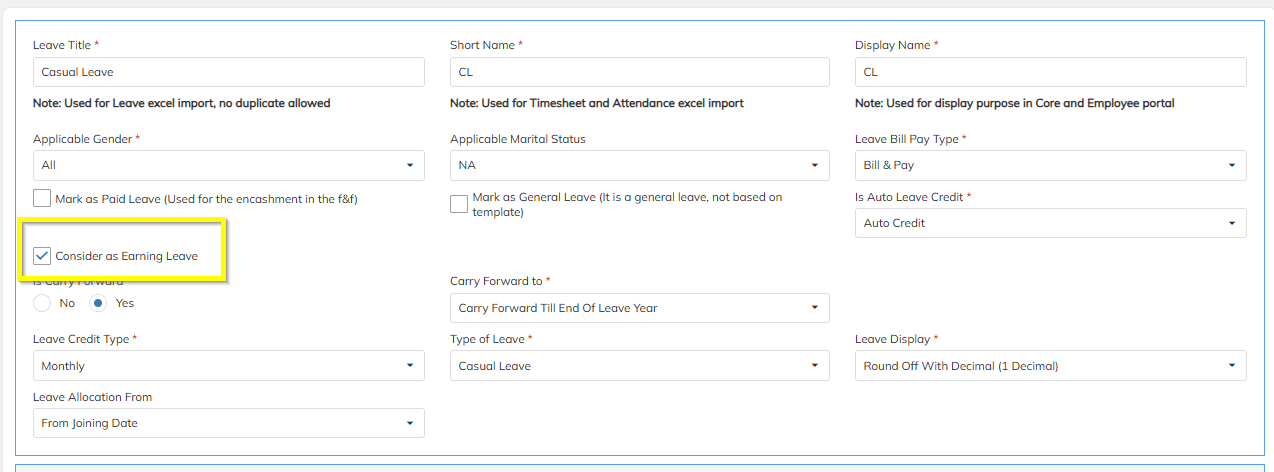
If enabled:
When Leave credite has been setup based on the employee working days system will exculed the Holiday, WeekOff and Leave for total work days.
If Enable the above option system will consider Leave days to total work days.
Example:
Employee worked 20 days and taken 1 Leave, and Total work days will be 21 if option is enable, if option is not enable the total work day will consider 20 only.
Carry Forward Configuration
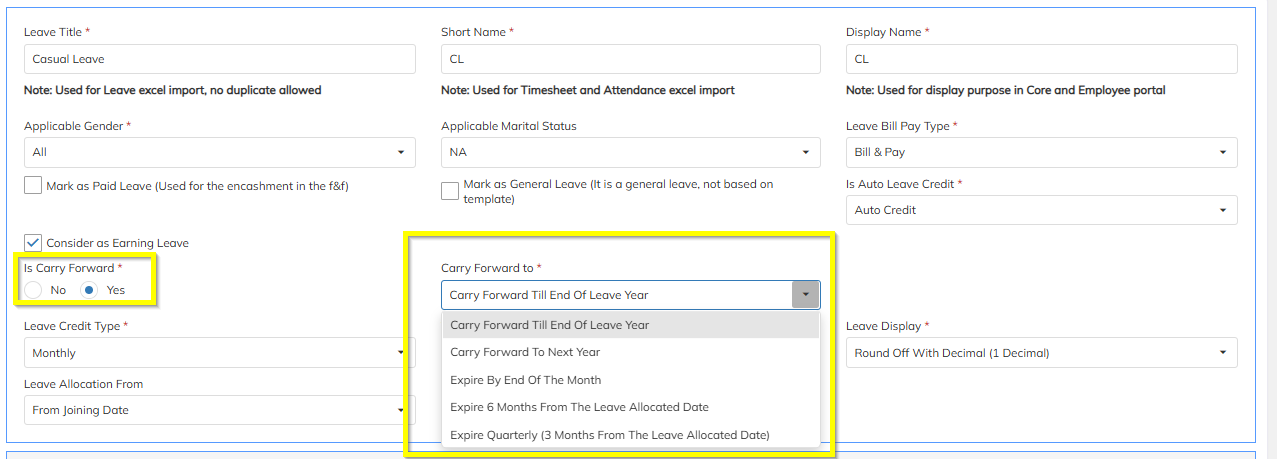
This setting defines leave expiry and carry-forward rules.
Carry Forward Options
| Option | Description |
|---|---|
| Carry Forward Till End Of Leave Year | Leaves remain valid until end of leave year |
| Carry Forward to Next Year | Remaining balance carried forward to next year |
| Expire by End of Month | Leaves expire at month end |
| Expire 6 Months from Allocation | Leaves expire after 6 months |
| Expire Quarterly | Leaves expire every 3 months |
Leave Credit Type
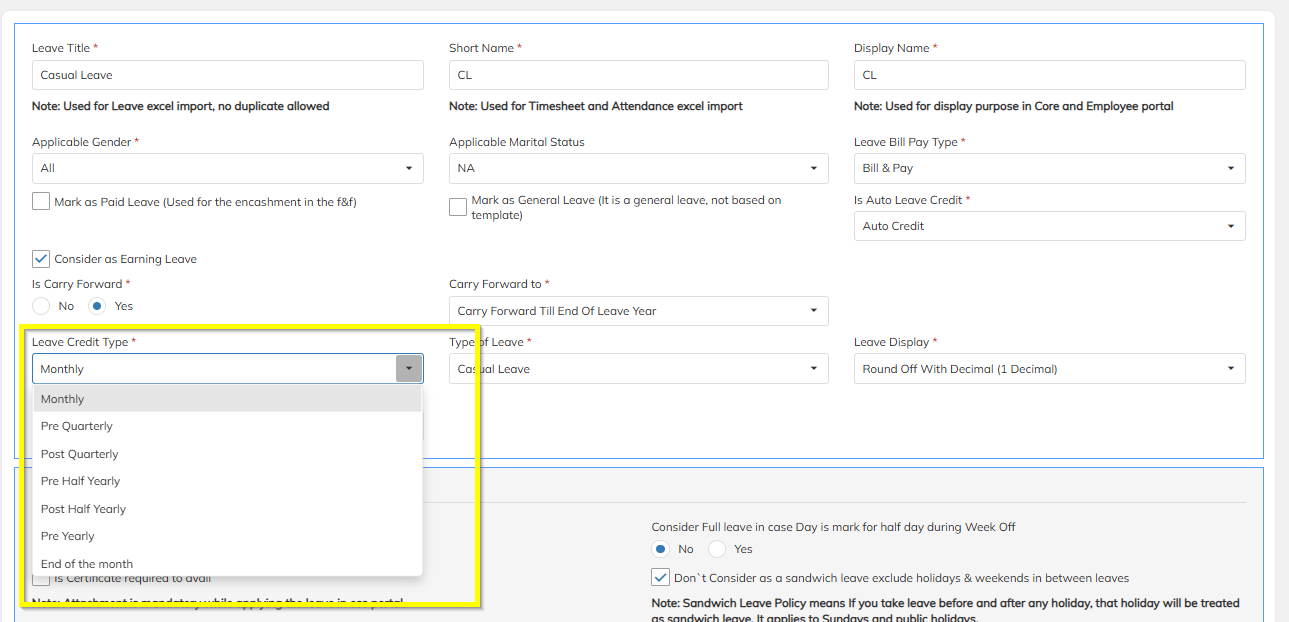
This determines how and when leave is credited to employees.
Monthly Credit
Leaves are credited every month on the first day.
Formula:
Total Annual Leaves ÷ 12 = Monthly Leave Credit
Example:
| Annual Leave | Monthly Credit |
|---|---|
| 12 | 1 per month |
Even if an employee joins mid-month, eligible prorated leaves will be credited.
Pre Quarterly
Leaves credited every 4 months at the start of the quarter.
Example:
| Annual Leave | Quarterly Credit |
|---|---|
| 12 | 3 per quarter |
Leaves credited on the first day of the quarter.
Post Quarterly
Leaves credited at the end of each quarter.
Example:
Quarter completed → leave credited on last day of quarter month
Pre Half-Yearly
Leaves credited every 6 months at start of half-year period.
Example:
| Annual Leave | Half-Year Credit |
|---|---|
| 12 | 6 |
Credited on first day of half-year.
Post Half-Yearly
Leaves credited every 6 months at end of half-year period.
Pre-Yearly
Entire annual leave allocated at the start of the leave year.
Example:
Leave Cycle: January – December
Leaves credited on January 1st
End of Month
Leaves credited on the last day of every month.
Example:
| Annual Leave | Monthly Credit |
|---|---|
| 12 | 1 |
Credited on month end.
Leave Display
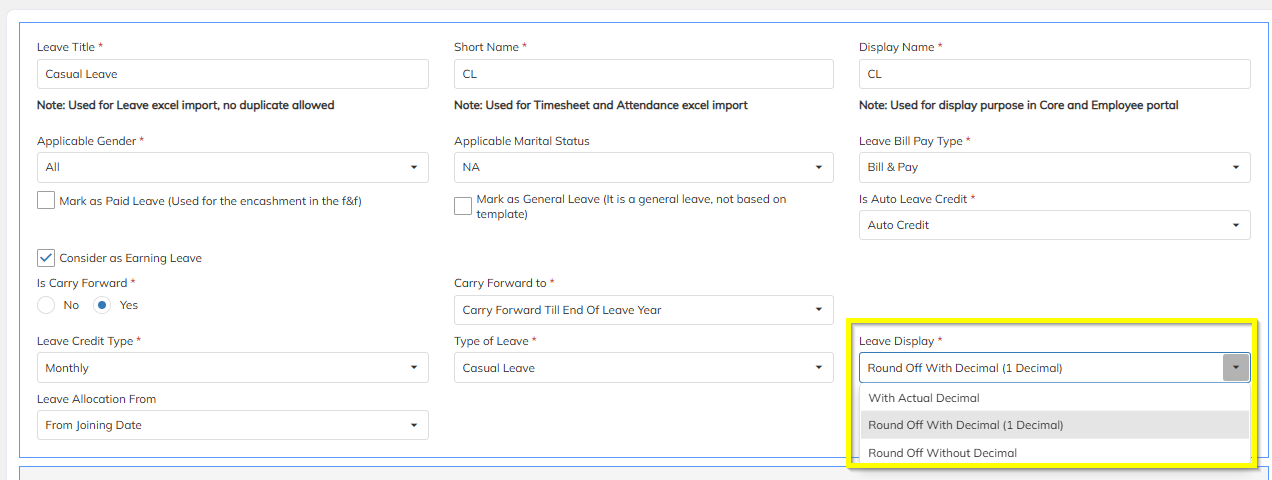
Controls how leave balance appears in system.
| Option | Description |
|---|---|
| With Actual Decimal | Exact leave value displayed |
| Round Off Decimal | Decimal rounded |
| Round Off Without Decimal | Decimal removed |
Example:
| Computed | Display |
|---|---|
| 0.67 | 0.67 (Actual) |
| 0.67 | 1 (Rounded) |
| 2.088 | 2 |
Leave Applicable Rules
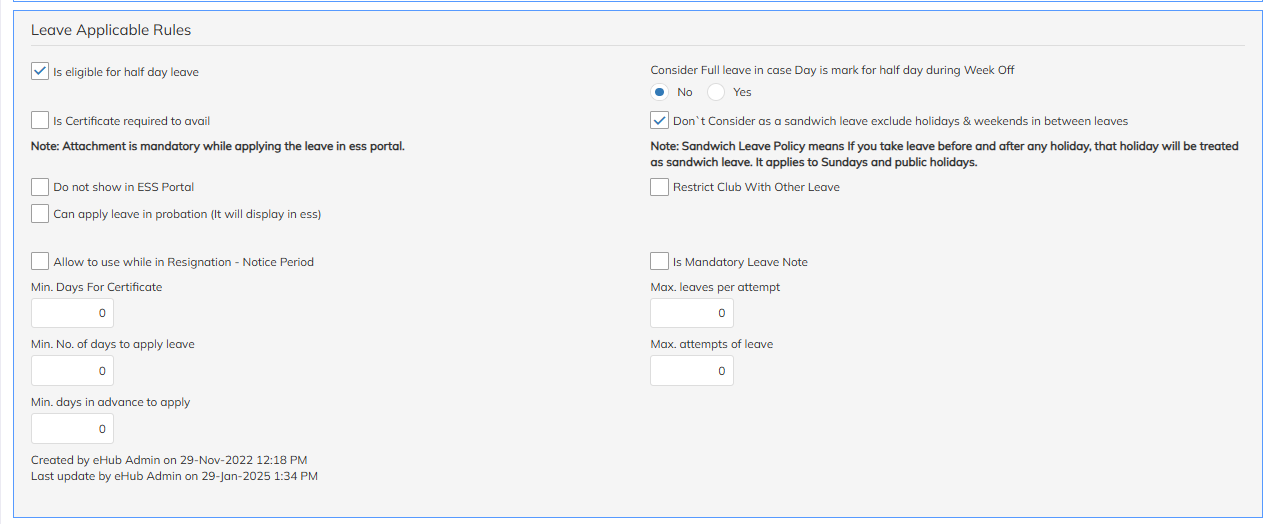
Defines restrictions and operational rules.
Key Options
Is Eligible for Half Day
Allows leave application for First Half / Second Half
Is Restricted Holiday
Employee can apply leave only on Restricted Holiday (RH)
Do Not Show in ESS Portal
Visible only in HR login
Restrict Club with Other Leaves
Prevents combining multiple leave types on consecutive days
Can Apply Leave in Probation
Leaves visible in ESS even during probation
Certificate Required
Attachment mandatory while applying leave
Allocate Leave Based on Working Days
Leave credited based on employee working days
Consider Full Leave on Half Day Week Off
Example:
Saturday marked half day
Full day leave applied → 0.5 leave deducted
Exclude Sandwich Leave
Weekends & holidays between leaves are not counted.
Allow Leave During Resignation
Defines maximum leaves allowed during notice period.
Mandatory Leave Note
Employee must enter leave reason.
Min Days for Certificate
Attachment required after specified leave days.
Max Leaves per Attempt
Limits number of leaves applied in one request.
Min Days to Apply Leave
Minimum leave application limit.
Min Advance Days
Leaves must be applied in advance.
Leave Allocation From
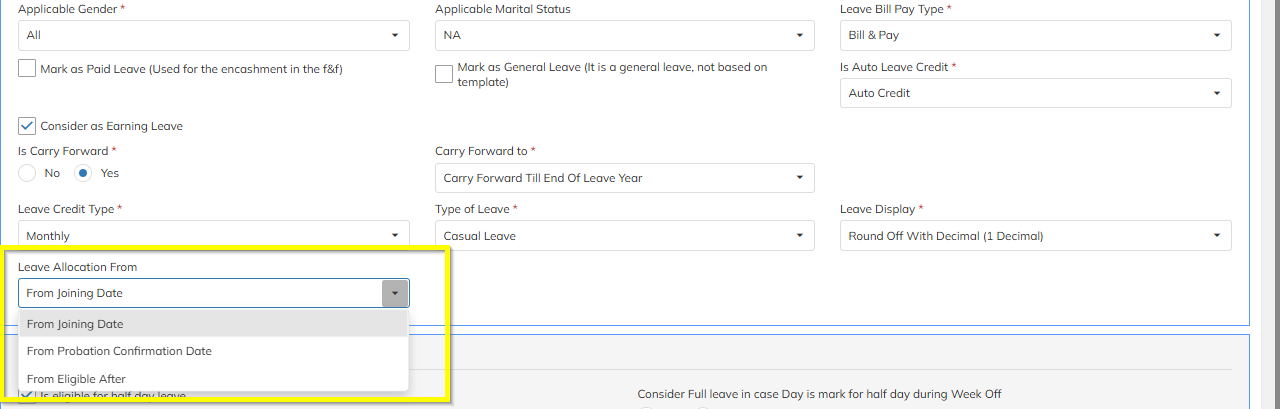
Defines when leave eligibility begins.
Options
From Joining Date
Leave credit starts from Date of Joining (DOJ).
Even during probation, leaves are allocated but visible after probation completion.
From Probation Confirmation Date
Leave credit begins after probation confirmation.
From Eligible After
Leave allocation begins after defined number of days from DOJ.
Example:
| DOJ | Eligible After | Leave Start |
|---|---|---|
| Jan 1 | 90 days | Apr 1 |
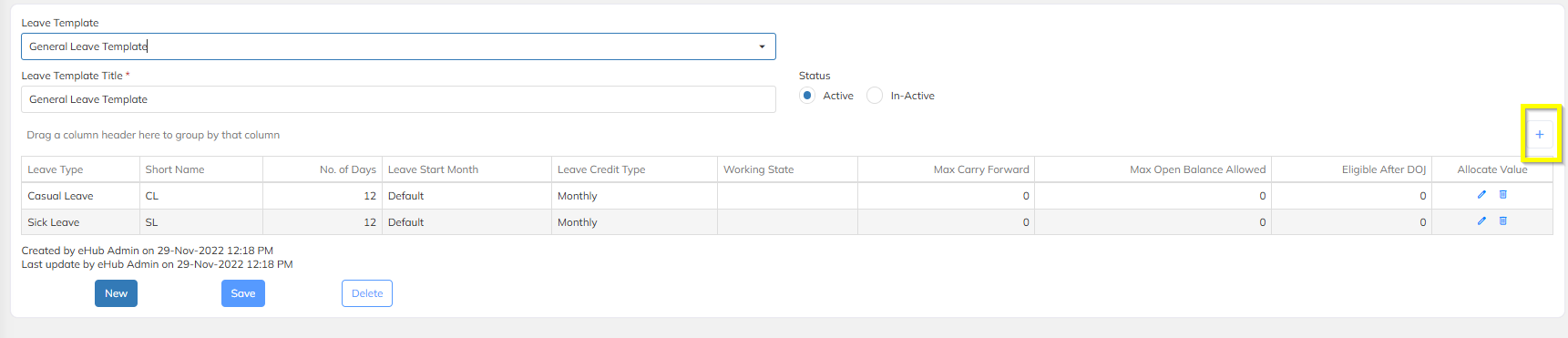
Creating Leave Template / Leave Structure
After creating leave types, the next step is to create a Leave Template.
Navigate to:
Settings → Leave & Attendance → Leave Template
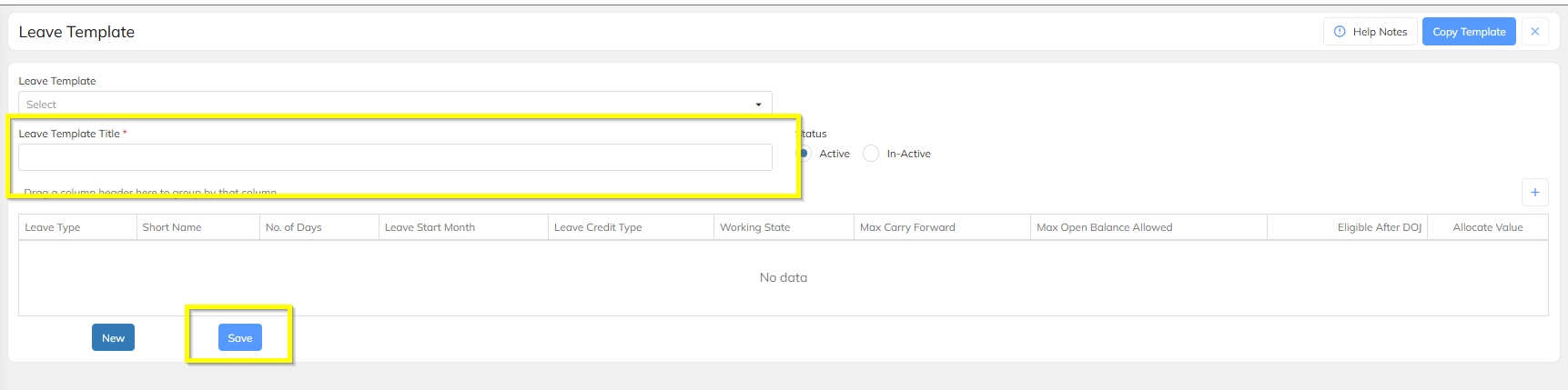
Create Leave Template
Click Add Leave Template
Enter Template Name
Click Add Leave Type
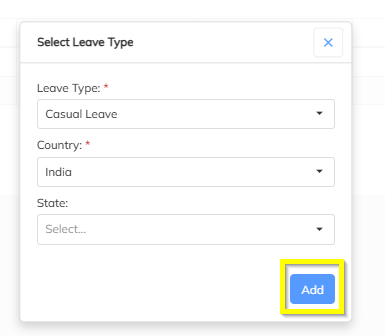
Add Leave Type
Select:
Leave Type
Country (Default: India)
State (If applicable)
Click Add
Leave Template Configuration
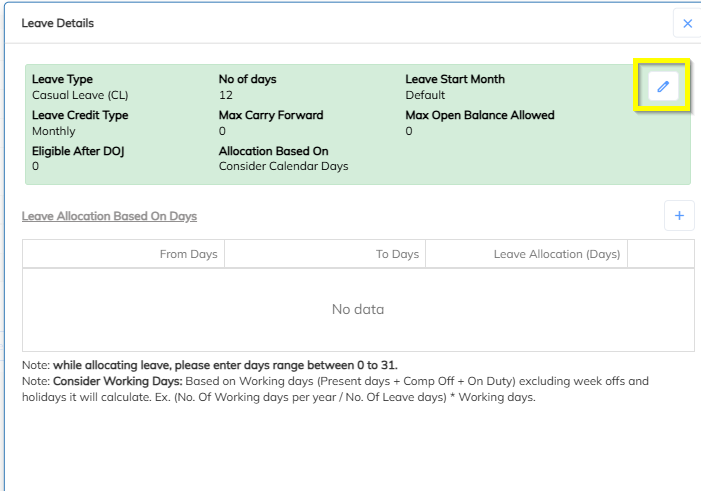
Click Edit and configure the following.
Leave Start Month
Defines leave cycle.
| Option | Result |
|---|---|
| Default | January – December |
| Custom Month | Leave year starts from selected month |
Example:
April selected → Leave cycle = Apr–Mar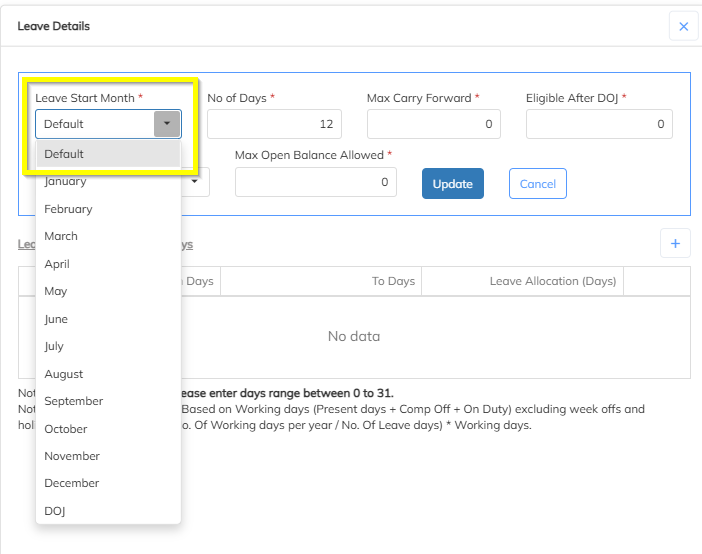
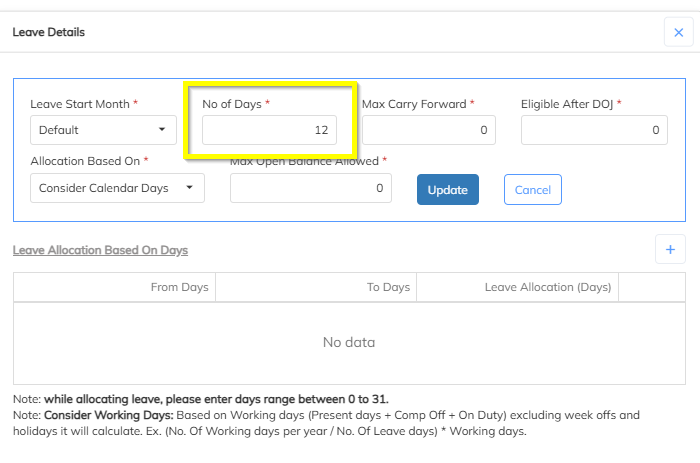
No of Days
Total leave allocated per year.
Example:
12 Leaves per year
Max Carry Forward
Maximum leave that can be carried forward.
Example:
Balance = 20
Max Carry Forward = 10
Next year balance = 10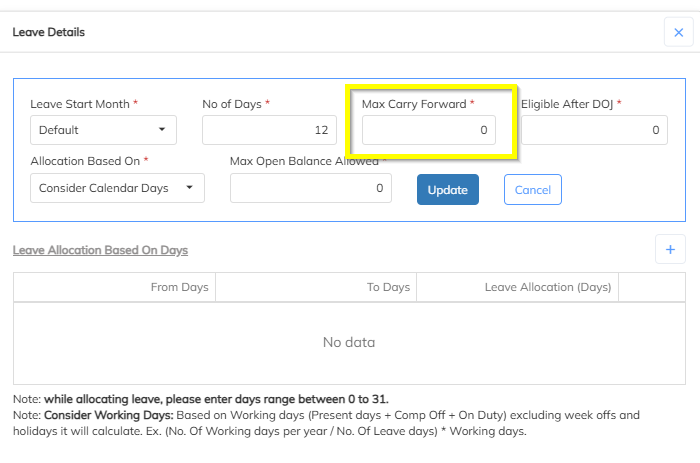
Eligible After DOJ
Defines waiting period.
Example:
Eligible after 90 days.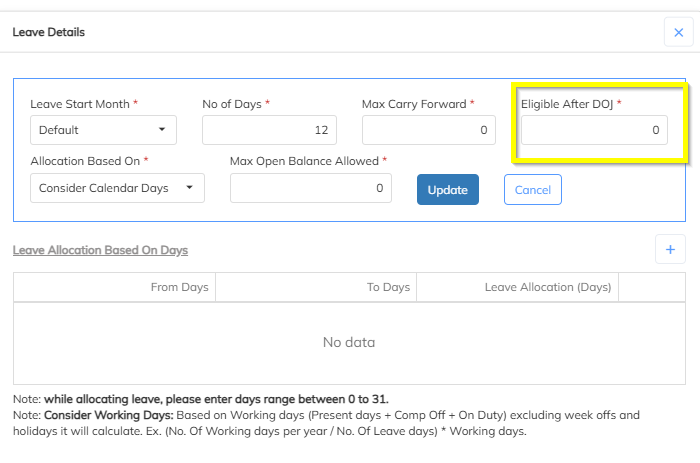
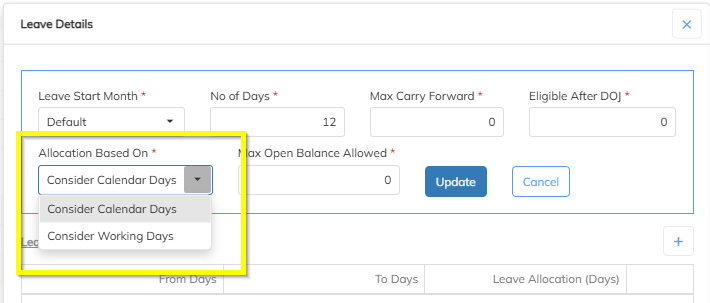
Allocation Based On
| Option | Description |
|---|---|
| Calendar Days | Leave allocated based on total days in the month |
| Working Days | Leave allocated based on working days |
Max Open Balance Allowed
Defines maximum leave balance.
If balance exceeds limit, system will stop further leave allocation.
Example:
Max Balance = 20
If employee already has 20 → no further credit.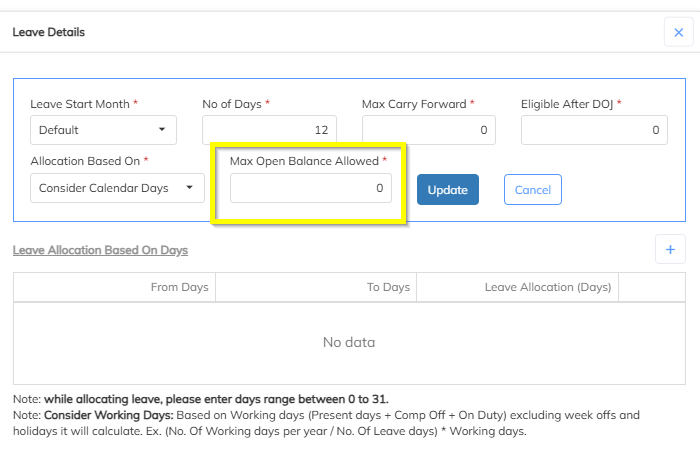
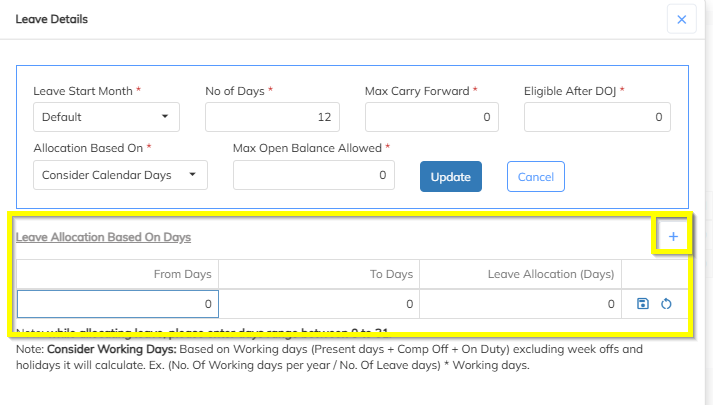
Leave Allocation Based on Days
Allows leave credit based on joining date.
Example:
| Joining Date | Leave Credit |
|---|---|
| 1–15 | 2 Leaves |
| 16–31 | 1 Leave |
Was this article helpful?
That’s Great!
Thank you for your feedback
Sorry! We couldn't be helpful
Thank you for your feedback
Feedback sent
We appreciate your effort and will try to fix the article