Purpose
This guide explains how employees can update and submit their monthly Timesheet in the ESS (Employee Self Service) portal.
Step 1: Login to ESS Portal
Open the StaffingGo ESS Portal.
Enter your Username and Password.
Click on Login.
Step 2: Navigate to Time & Attendance Module
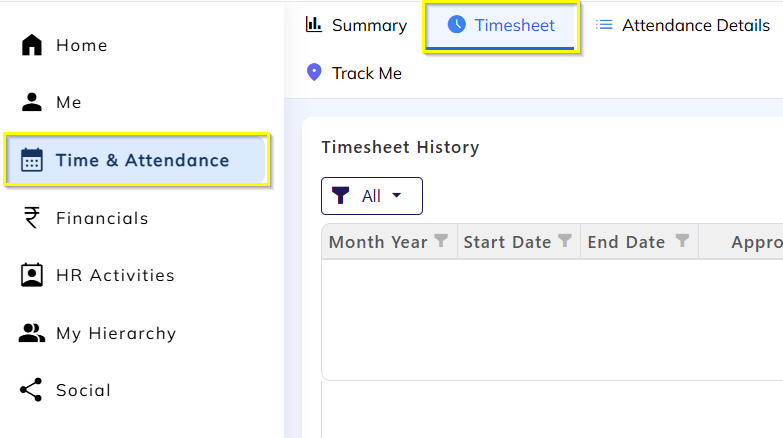
After login, go to the main dashboard.
Click on Time & Attendance module.
Select the Timesheet tab.
Step 3: Select the Month
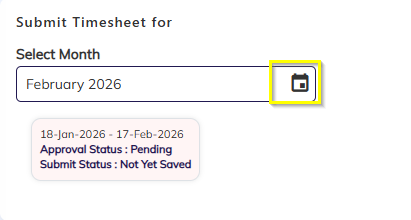
In the Timesheet screen, select the Month you want to update.
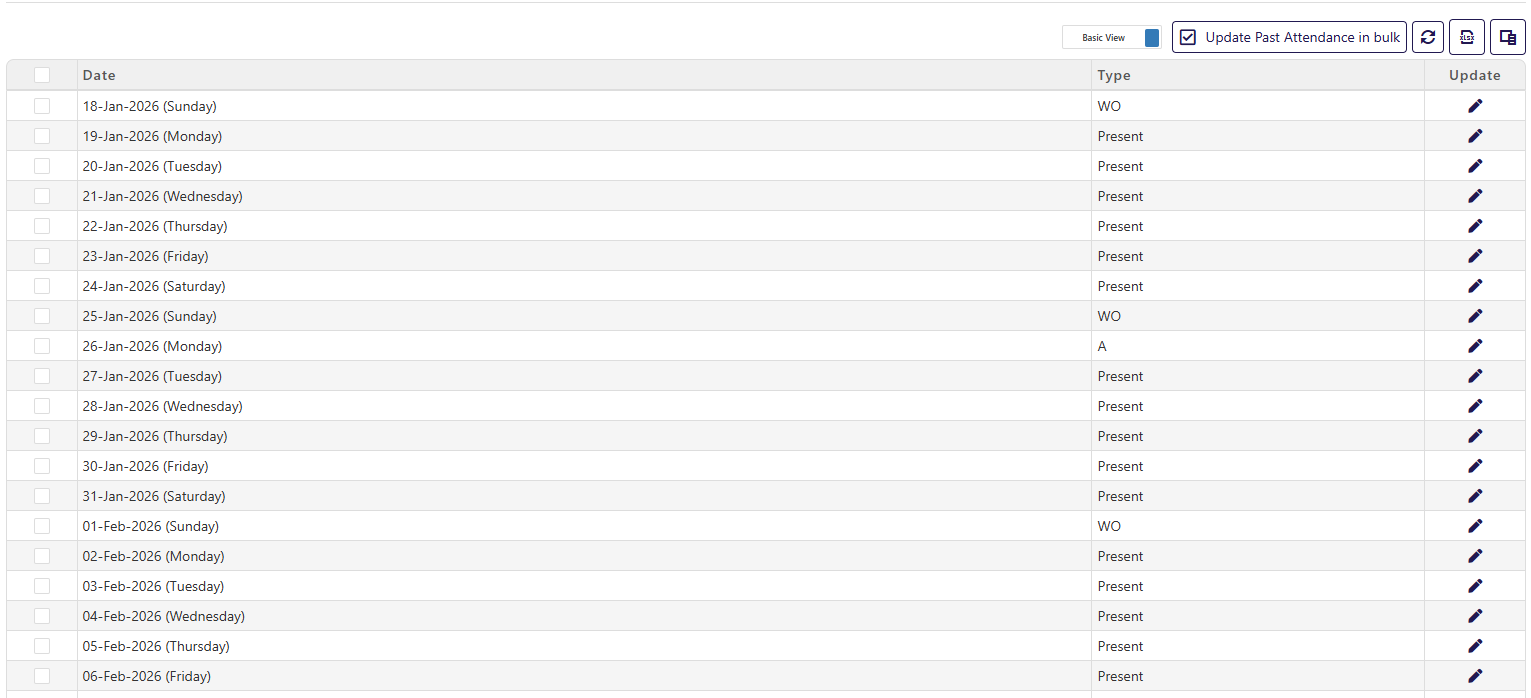
The system will display all attendance records for the selected month.
Verify all the attendance.
Step 5: Edit Attendance (If Required)
Click on the Edit Icon beside the date that needs correction.
Update the correct In Time / Out Time.
Enter remarks (if required).
Click on Update to save the changes.


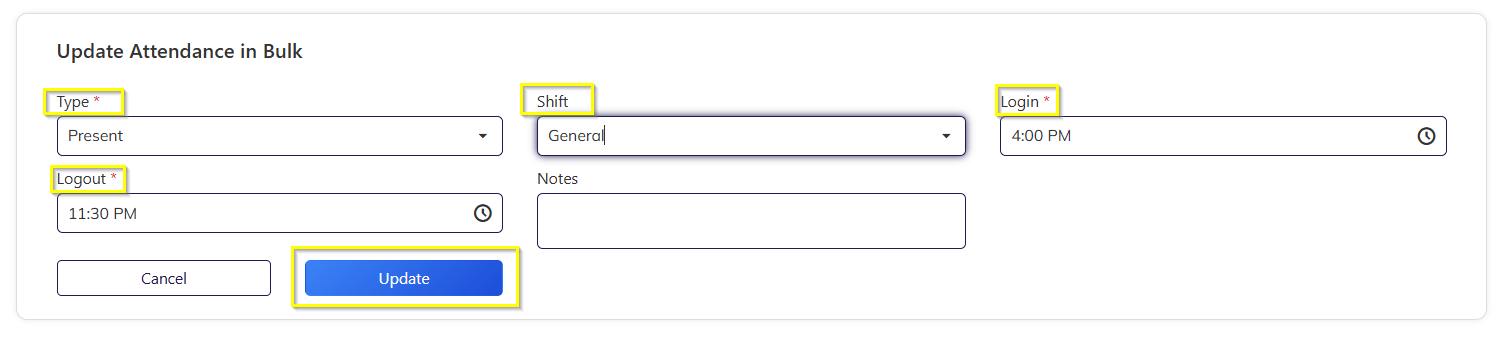
Step 6: Edit Attendance in Bulk(If Required)
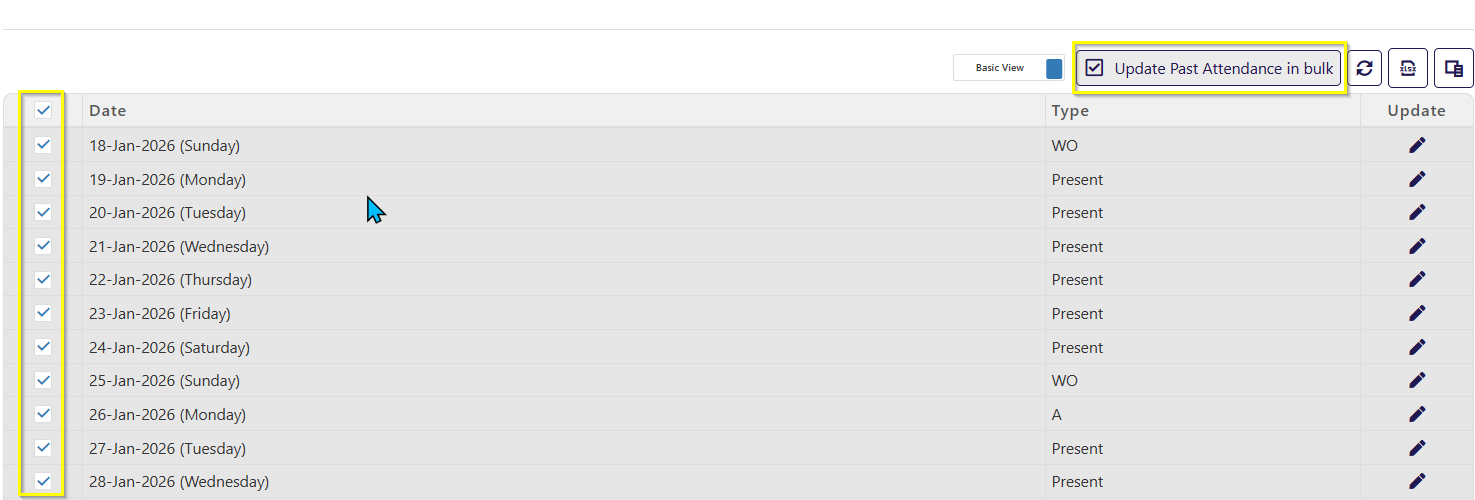
1. Select the all the days
2 .Click on the button Update Past Attendance in Bulk.
3. Then you get a pop-up select the Type & Shift ,Update the correct In Time / Out Time.
4. Click on Update.
Step 7: Save the Timesheet
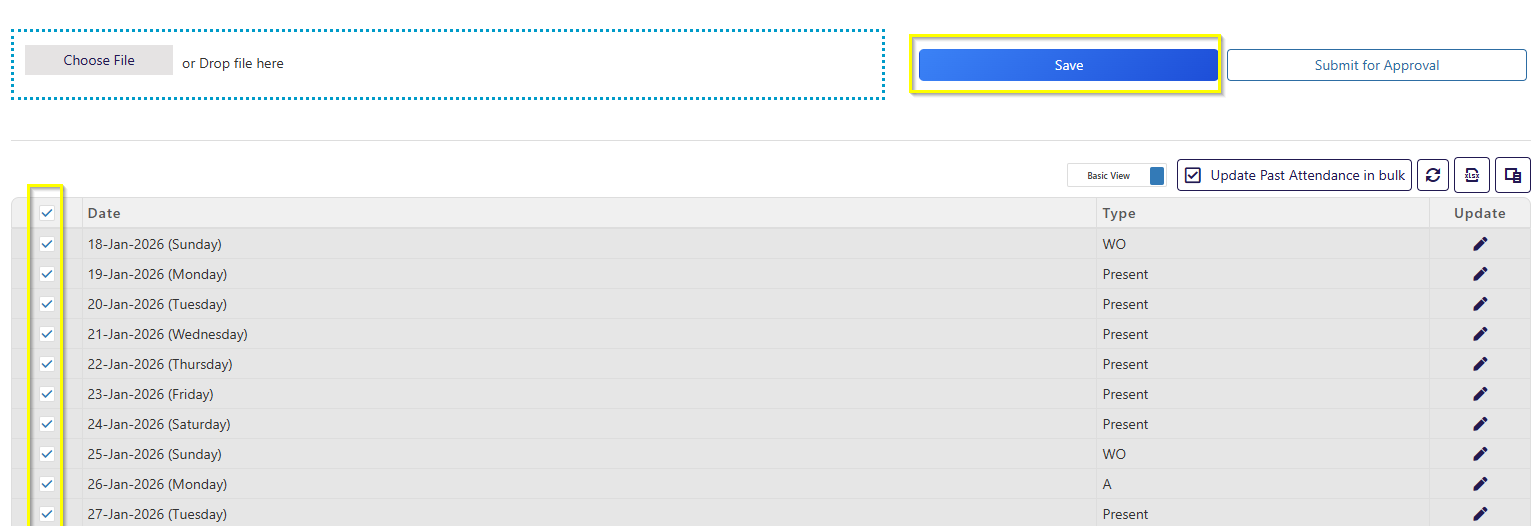
After verifying all entries, select all the dates and click on Save.
Ensure there are no pending corrections.
Step 8: Submit for Approval
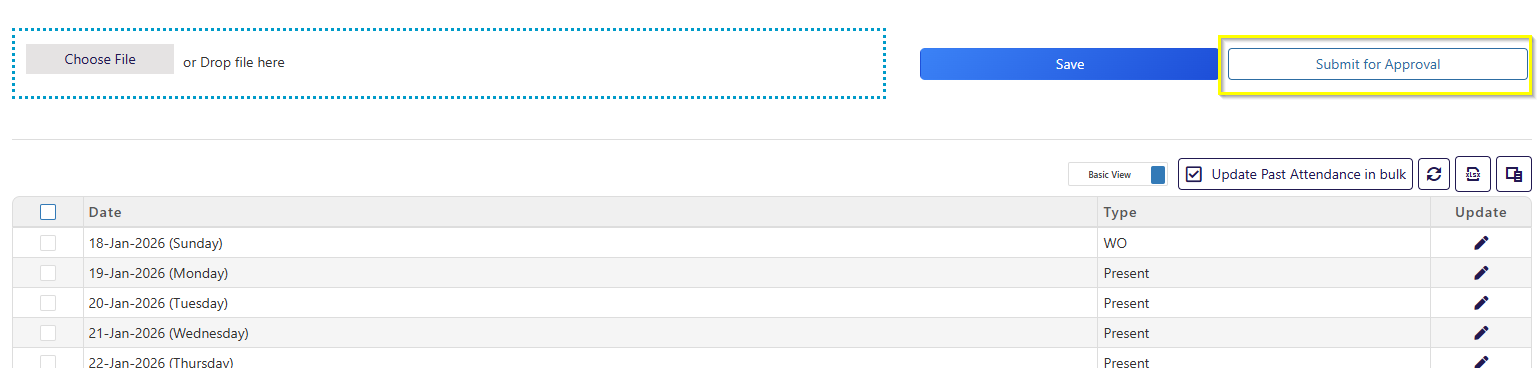
Once Timesheet is Saved ,Click on Submit for Approval.
The timesheet will be forwarded to your reporting manager.
You will receive a confirmation notification.
Important Notes
Timesheets must be submitted before the monthly deadline.
Once submitted, editing may not be allowed unless rejected by the manager.
In case of issues, contact the HR/Admin team.
Was this article helpful?
That’s Great!
Thank you for your feedback
Sorry! We couldn't be helpful
Thank you for your feedback
Feedback sent
We appreciate your effort and will try to fix the article