Overview
This document explains the complete reimbursement workflow in the system — from the creation of reimbursement entries to the final posting in Tally. The process involves multiple stages: Verification Pending, Approval Pending, Process Pending, and Lock Pending. Each stage requires specific actions to ensure that all reimbursement transactions are validated, approved, and recorded properly.
1. Reimbursement Workflow
Stage 1: Reimbursement creation
In application, We have the functionality to raise reimbursement behalf of employee both in Manual and bulk.
MANUAL :
Navigate to Reimbursement >> Click on Extension option (Which was highlighted below snap)>> Click on Item entry Option.
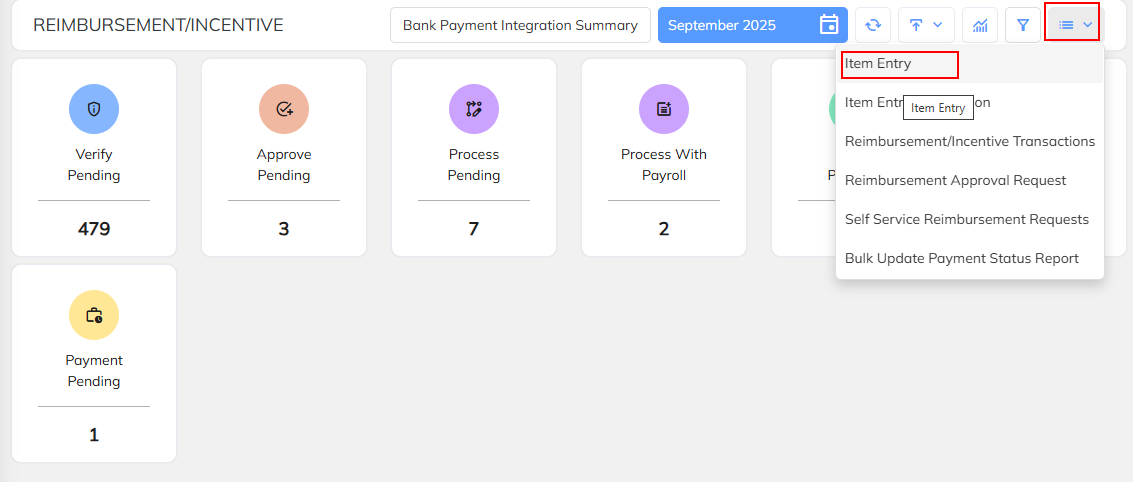
Once click on Item entry option >> user will get "+" option to enter the transaction. (Refer below snap). Once transaction created ,It will be visible in Verification pending tab. and process the reimbursement by repeating the same steps .
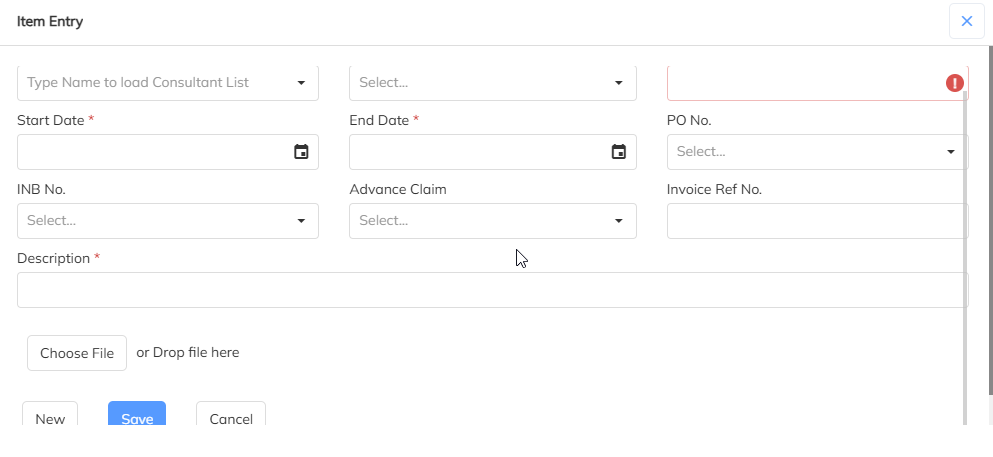
Consultant : where user must type the consultant’s name. The system will display a list of matching names from which you can select the correct consultant. This field links the entry to the appropriate individual.
Reimbursement/Salary: select the applicable category from the dropdown list. Typically, this will be either Reimbursement for expense-related claims or Salary for payment entries.
Amount : enter the total amount that needs to be reimbursed or paid. Only numeric values are accepted here. If you leave this field blank or enter an invalid value, an error icon will appear indicating the issue.
Start Date and End Date : This fields define the period to which the claim or payment applies. You can select these dates using the calendar icon. Ensure that the start date is not later than the end date.
If the transaction is linked to a Purchase Order, use the PO No. dropdown to select the correct PO number. This helps with record tracking and internal validation. Similarly, the INB No. field allows user to select the relevant invoice or billing number, if applicable.
Advance Claim: This field is used to indicate whether the current entry is related to an advance payment.
If there is a related invoice, you can enter its reference number in the Invoice Ref No. field. This makes future cross-referencing and auditing easier.
Description: This field is mandatory and should include a brief explanation of the claim or payment. For example, user might write “Reimbursement for client travel expenses” or “Monthly salary for October 2025.” This helps reviewers quickly understand the purpose of the entry.
At the bottom of the form, there is a section to upload supporting documents. You can either click the “Choose File” button to select a file from your computer or drag and drop it directly into the upload area and save the record.
Stage 2: Verification Pending
Once the respective user approves a reimbursement entry, the transaction will automatically move to the Verification Pending tab.
To proceed:
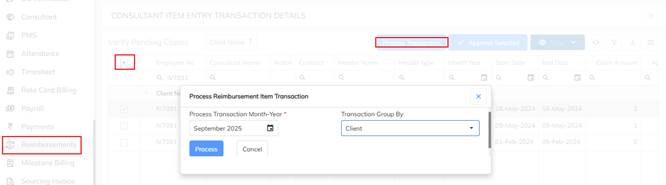
Navigate to the Verification Pending tab.
Select the record(s) that need to be processed.
Click on the Process Transaction button (as shown in the screenshot).
Once processed, the selected transaction will move to the Approval Pending tab.
Stage 3: Approval Pending
In this stage, all transactions that have been verified and processed are displayed for final approval.
Steps:
Navigate to the Approval Pending tab.
Select or choose the Client from the dropdown list.
Click on Load Associate List to view all the employees associated with that client whose reimbursement transactions need processing.
To narrow down the results, use the Load Associate List with Filter option. This helps refine the employee search list based on specific criteria such as department, date, or claim type.
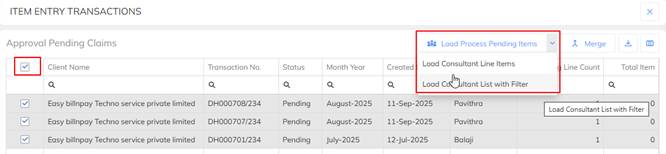
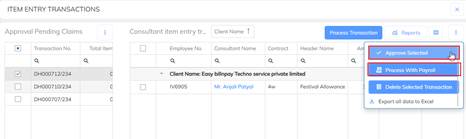
5. Once the required employee transactions are visible, process them by selecting one of the following options:
Approve Selected – Marks the selected reimbursement(s) as approved and moves them to the Process Pending tab.
Process with Payroll – Links the reimbursement to the payroll for the respective month. These transactions will appear under the Process with Payroll tab.
Stage 4: Lock Pending
The Lock Pending tab is the final validation stage before closing the reimbursement transaction.
In this tab, users can perform several important functions:
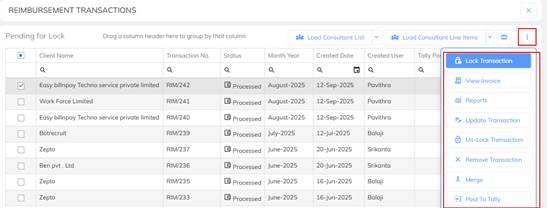
- Lock Transaction – Once the transactions are verified, you can lock them.
- View Invoice – Allows you to view the invoice. The system will redirect to the Reimbursement Invoice.
- Reports – Enables you to download Reimbursement Reports.
- Unlock Transaction – If there is any mismatch, the transaction can be unlocked, updated with the required changes, and then locked again.
- Remove Transaction – Allows you to remove the transaction from the Lock Pending stage and move it back to the previous tab.
- Merge – Provides the option to merge multiple transactions into a single transaction.
- Post to Tally – Enables you to post the reimbursement details to Tally.
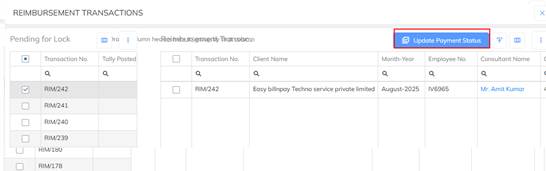
Additionally, in the Lock Pending tab, users can update the Payment Status by using the Load Consultant List option. This ensures accurate tracking of which reimbursements have been paid, are pending, or are under processing.
BULK Reimbursement Upload Process:
Navigate to the Import section of the application under Reimbursement module ,Select the Consolidated Reimbursement details import option
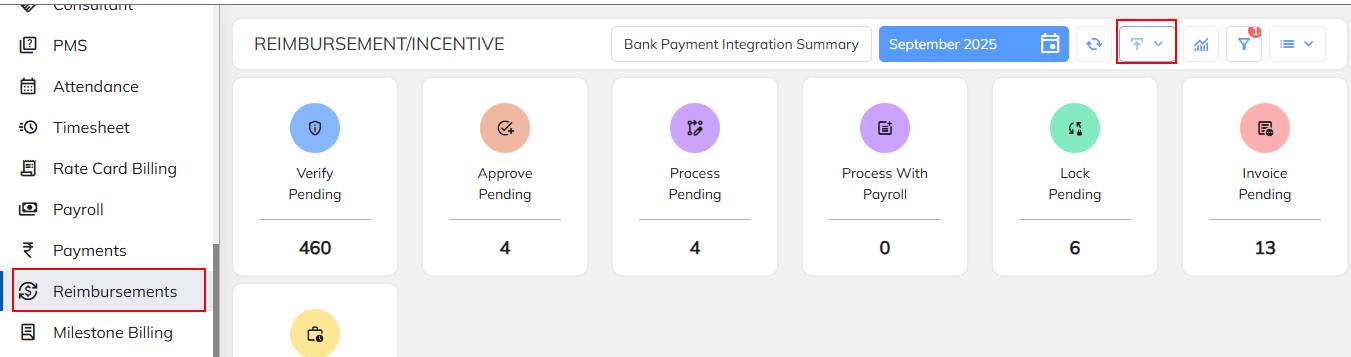
Choose the consolidated Reimbursement option & download the same excel import and prepare the input details in the same sheet.
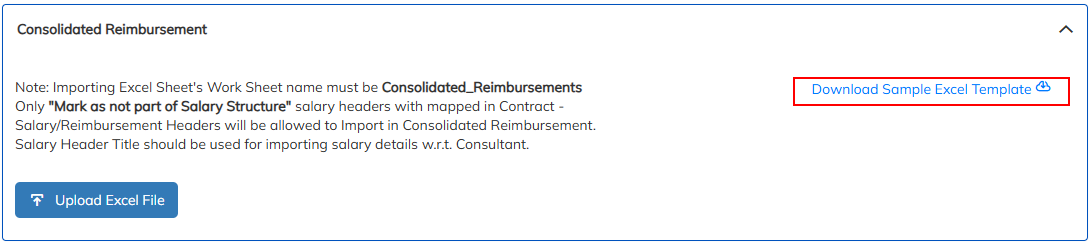
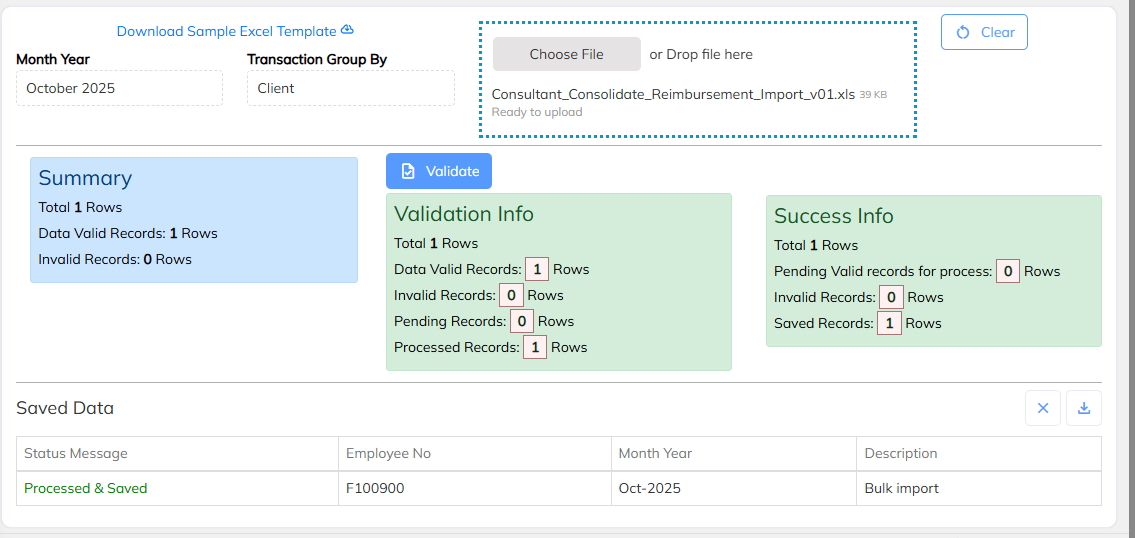
Prepare the sample in the attached format as an example. and upload the file under upload excel file option and save the details. Refer the Import sheet , which is attached below.
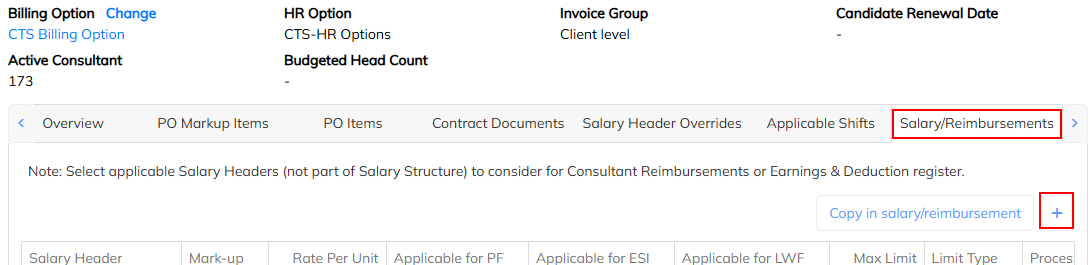
Reimbursement Headers must be mapped at the contract level. This mapping establishes a direct relationship between each reimbursement type (header) and the specific contract which the consultant is engaged.
Without this mapping, the system will not be able to identify which reimbursement categories are valid for a particular consultant or client contract, which may lead to errors during import,
Navigate to contract >> Contract Options >> Choose salary/Reimbursement Option >> Add + icon to add Reimbursement
Was this article helpful?
That’s Great!
Thank you for your feedback
Sorry! We couldn't be helpful
Thank you for your feedback
Feedback sent
We appreciate your effort and will try to fix the article